

Vault
The Vault keeps your keys in one encrypted file. See Keys & the Vault for what each key type is for.
Create or open a Vault
Section titled “Create or open a Vault”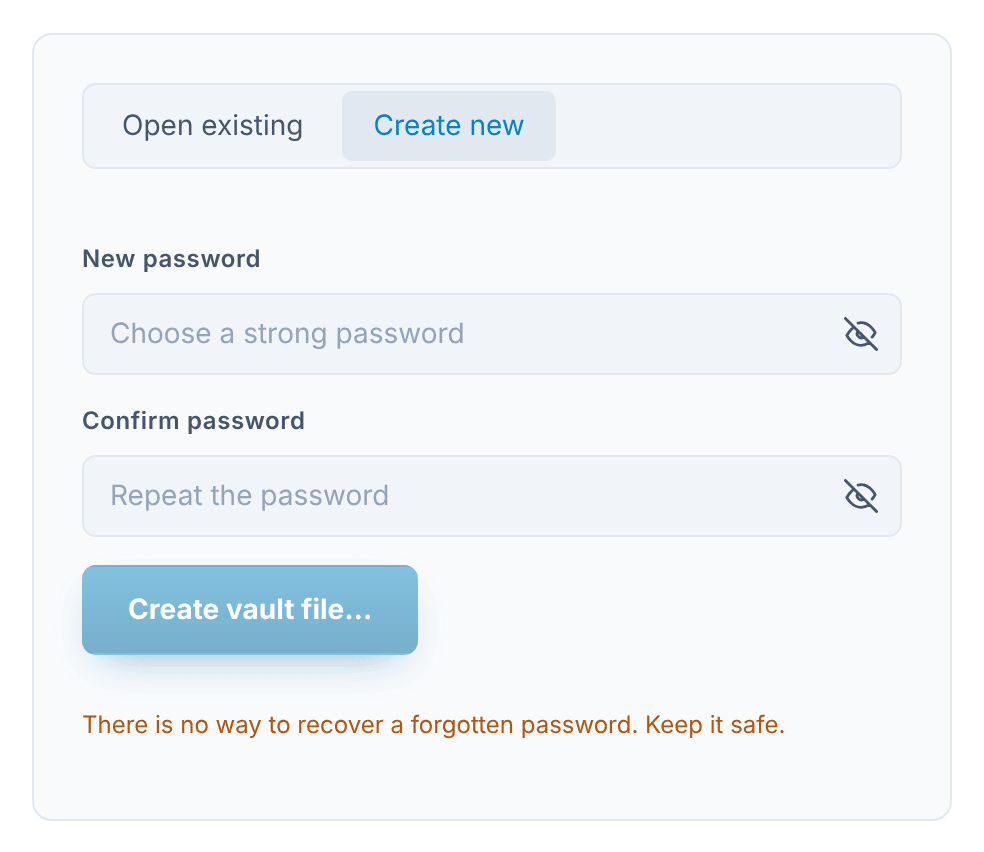
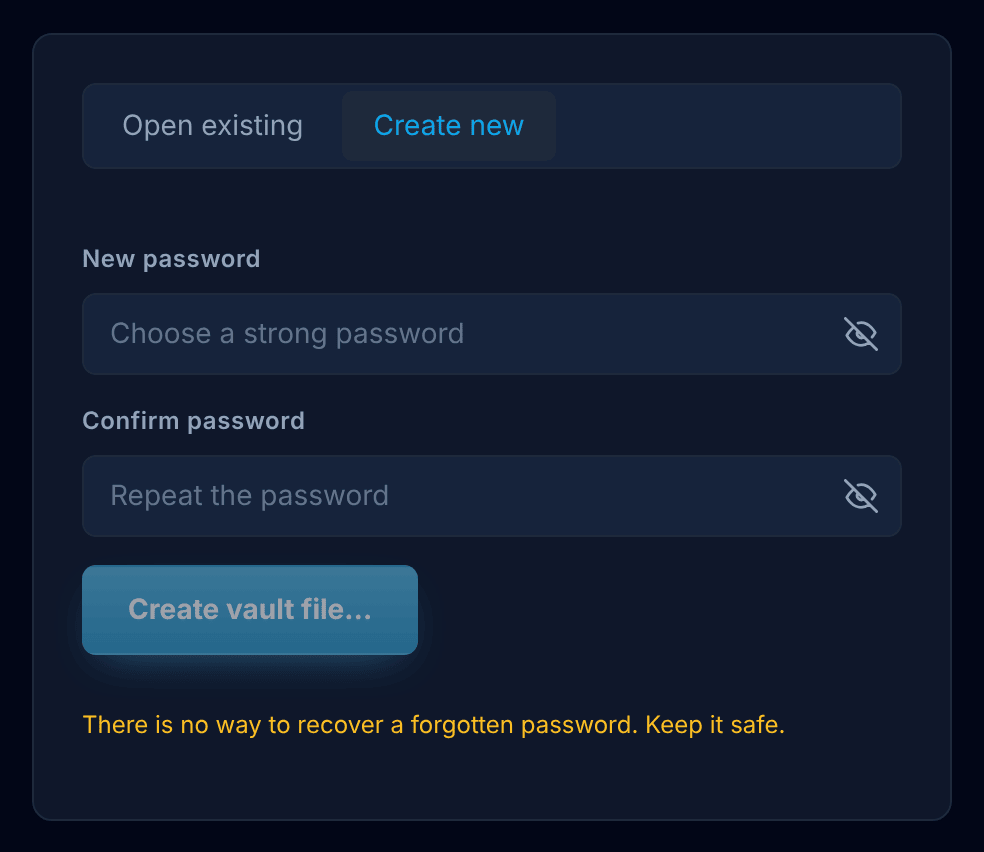
- Create new — choose a password, repeat it, and press Create vault file… to choose where to save it. A strength meter helps you choose; a weak password must be confirmed with Use this weak password anyway. There is no way to recover a forgotten password. If a file with the name you choose already exists, the Vault isn’t created — choose another name, or open that file with Open existing. An existing Vault is never replaced with an empty one.
- Open existing — press Open vault file…, choose your
.vaultfile and enter its password.
Your keys
Section titled “Your keys”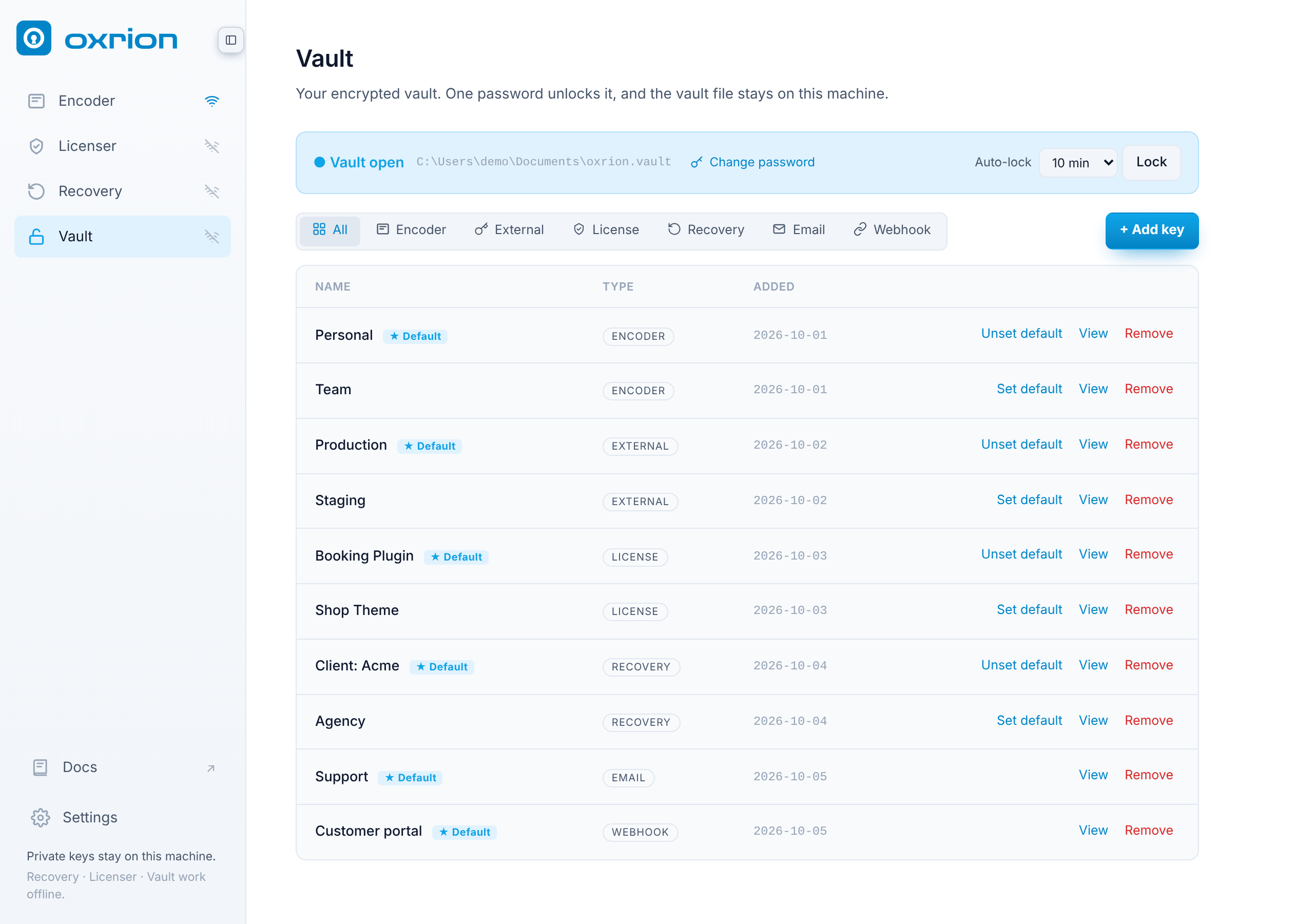
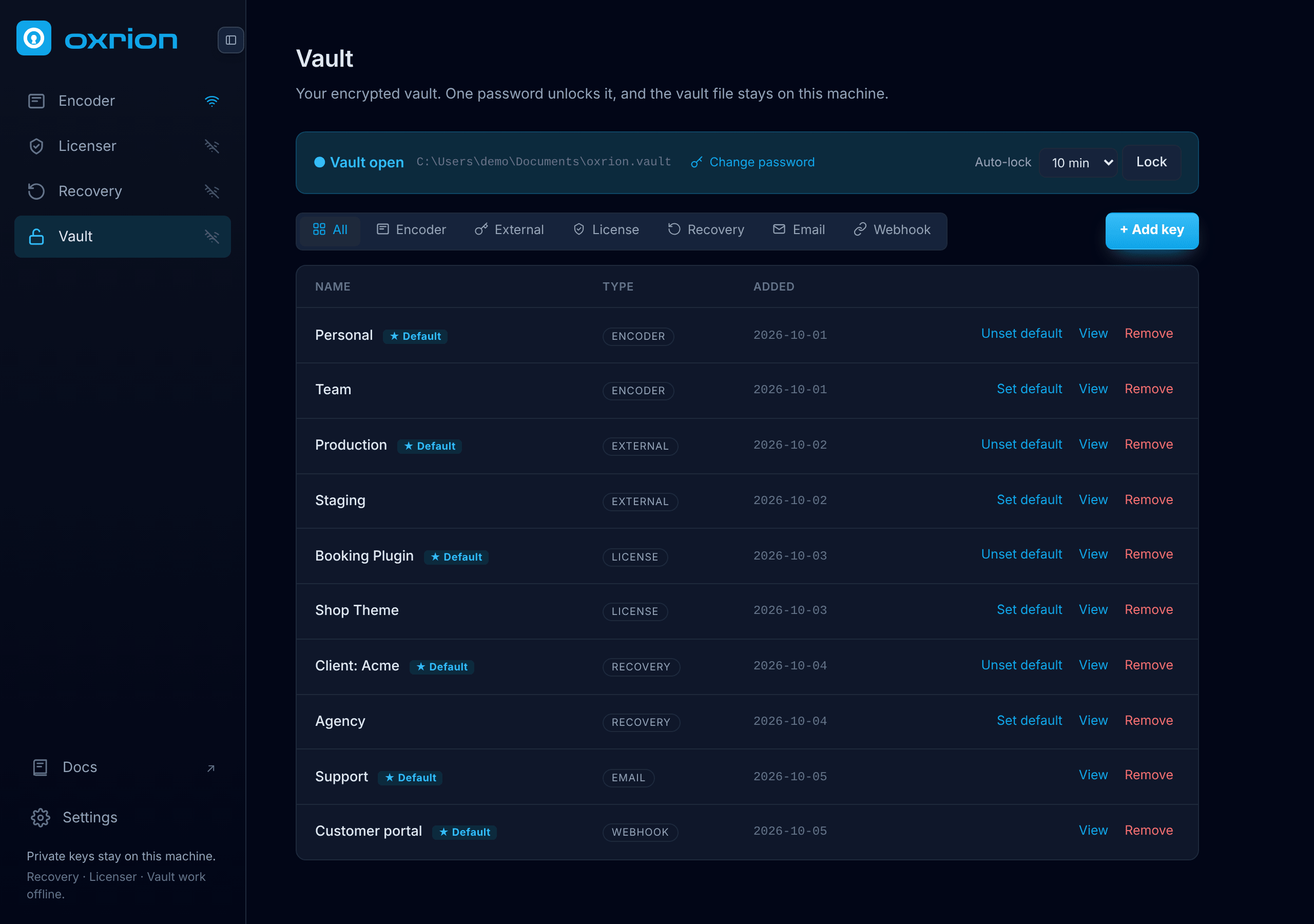
When the Vault is open you see your keys, with tabs to show one type at a time: Encoder, External, License, Recovery, Email and Webhook.
- + Add key — choose the type, give it a name (optional — it’s named automatically otherwise), and paste the key or press Generate to create a new one. Encoder Keys can’t be generated here; get them from the Oxrion Console.
- View — shows the key, with a copy button.
- Set default — the default key of each type is selected automatically in the Encoder, Licenser and Recovery. Encoder, external, license and recovery keys can have a default.
- Remove — deletes the key from the Vault. A removed private key can’t be brought back unless you have another copy.
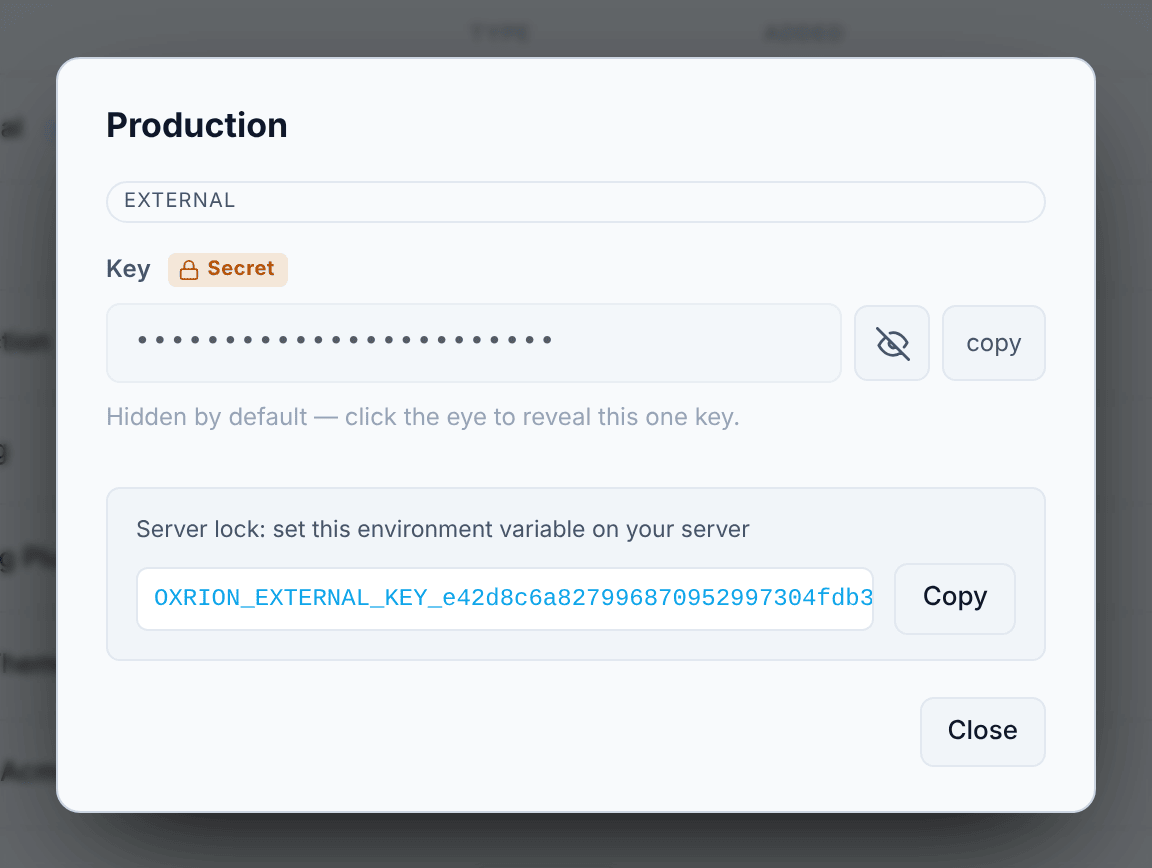
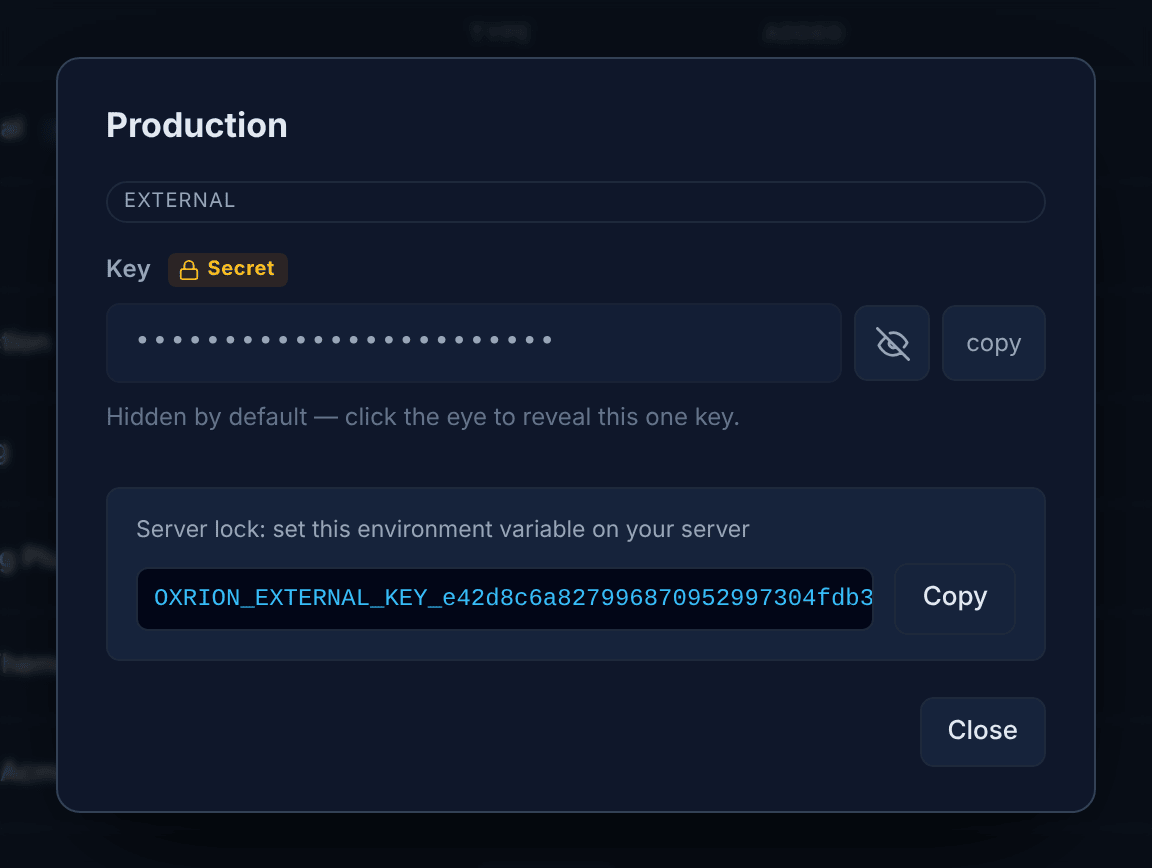
For an external key, Add key and View also show the environment variable to set on your server for Server lock, with a copy button.
Locking
Section titled “Locking”The Vault locks itself after a time without use — choose 5 min, 10 min, 30 min or Never under Auto-lock. Press Lock to lock it right away. It also locks when you close the app. While it’s locked, the Encoder, Licenser and Recovery can’t fill in saved keys, but you can still paste keys by hand.
Changing the password
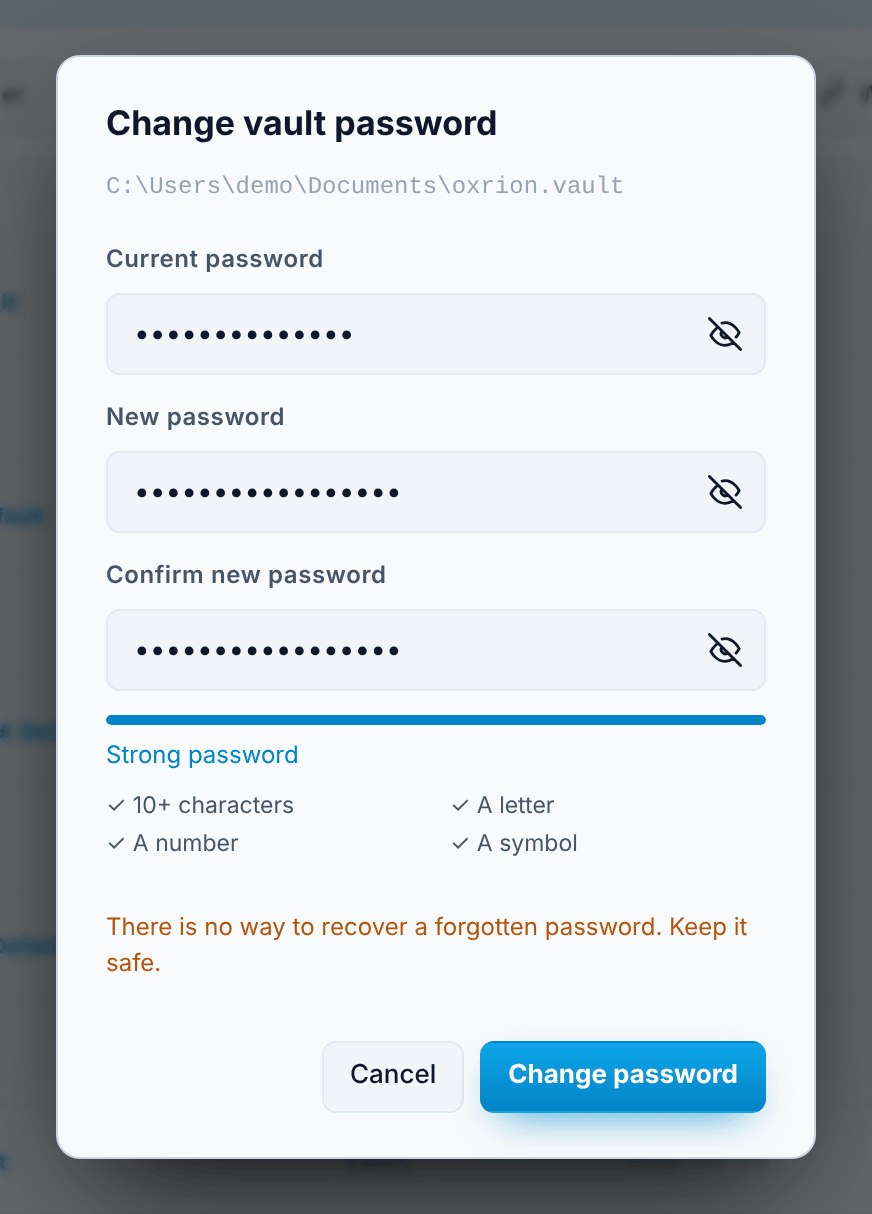
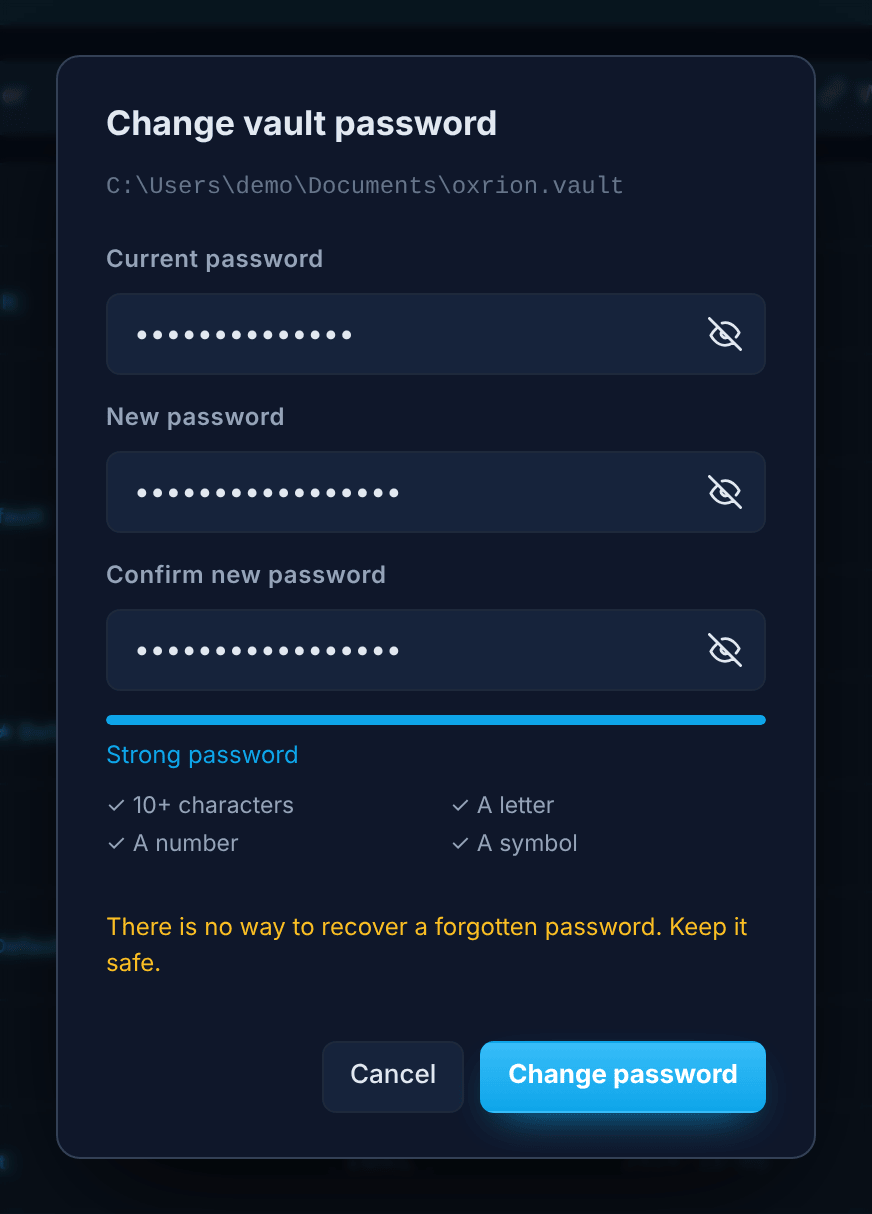
Section titled “Changing the password”Press Change password in the bar at the top of the open Vault. Enter your current password, then the new one twice. The same strength rules apply as when you created the Vault.
Your keys stay as they are; the Vault file is saved again, protected by the new password. From then on only the new password opens it. Copies of the file you made earlier — a backup, or the file on another computer — still open only with the old password.
Moving to another computer
Section titled “Moving to another computer”Copy your .vault file to the other computer and open it there with Open existing. See Data & privacy.