

License History
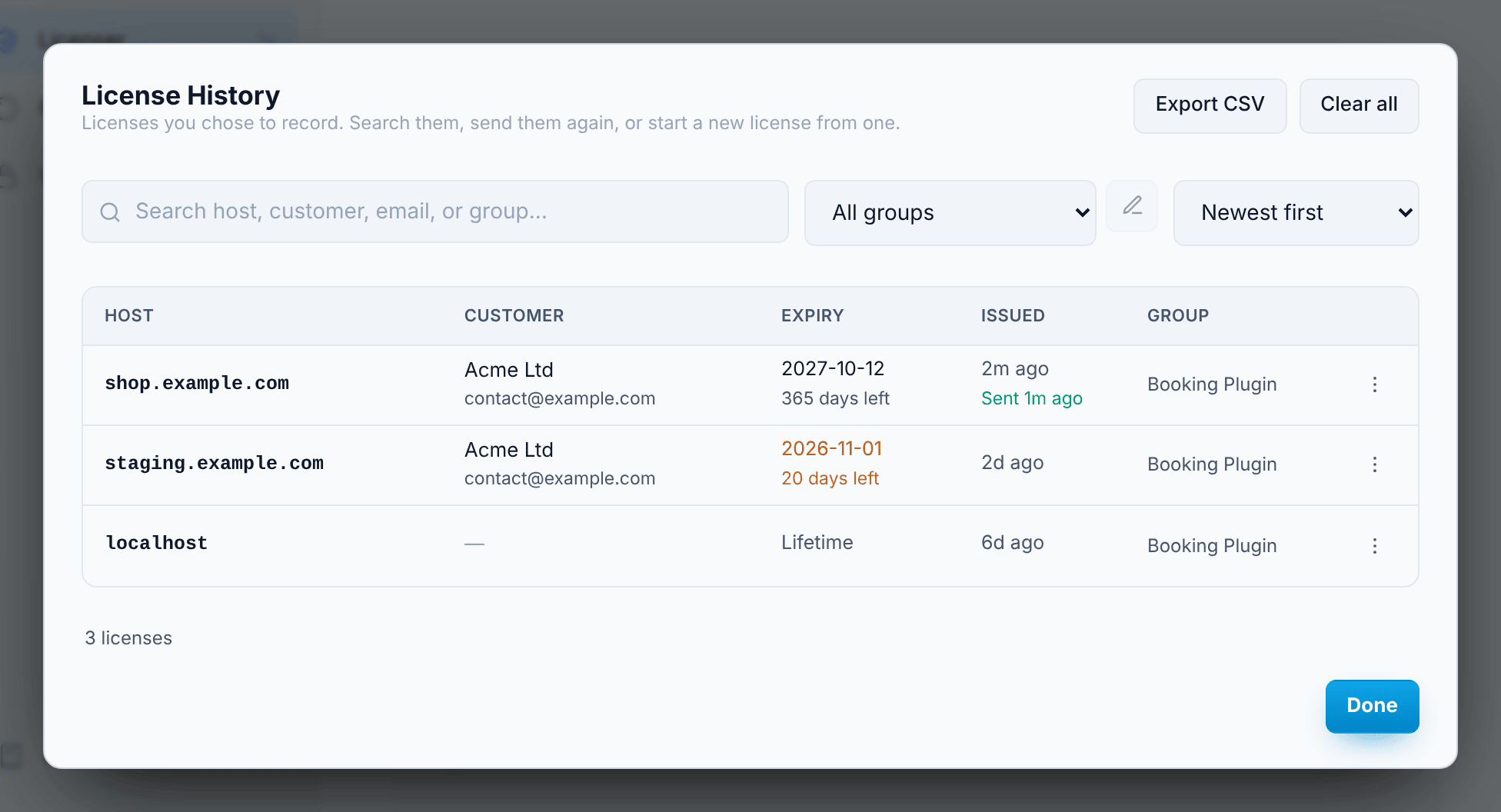
License History lists every license you created with Keep a record ticked. Open it with the License History button at the top of the Licenser.
Finding licenses
Section titled “Finding licenses”- Search by host, customer, email, group name or note.
- Sort by newest or oldest, by expiry, by host or by customer.
- Group filter — show the licenses of one license key only.
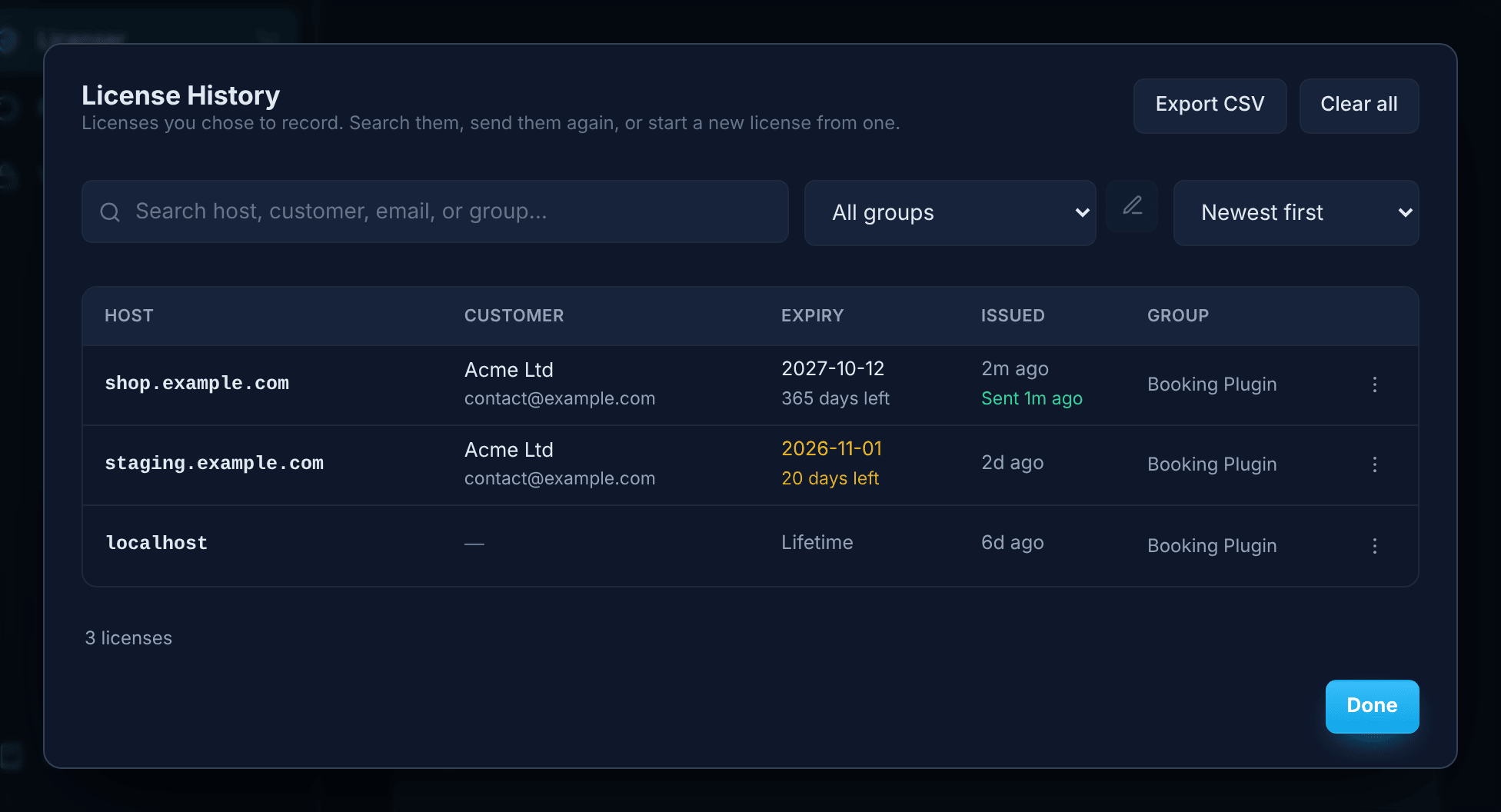
Each row shows the Host, Customer, Expiry (with the time left, or Expired), when it was Issued, and its Group. Under the issue date you also see when the license was emailed and whether its webhook was delivered.
Actions
Section titled “Actions”The ⋯ menu on each row:
| Action | What it does |
|---|---|
| New license from this | Opens the Licenser with the host and customer details filled in; you enter the key and the new expiry. The quick way to renew. |
| Copy host | Copies the host. |
| Edit details | Changes the customer name, email and note. |
| Email license | Emails the license file to the customer. See below. |
| Send webhook | Sends the license to your webhook again. |
| Save .lic again | Saves another copy of the license file. |
Email license and Save .lic again need the license file, which Oxrion keeps for every license recorded with the current version of Oxrion Desktop. Licenses recorded with older versions don’t have it.
Emailing a license
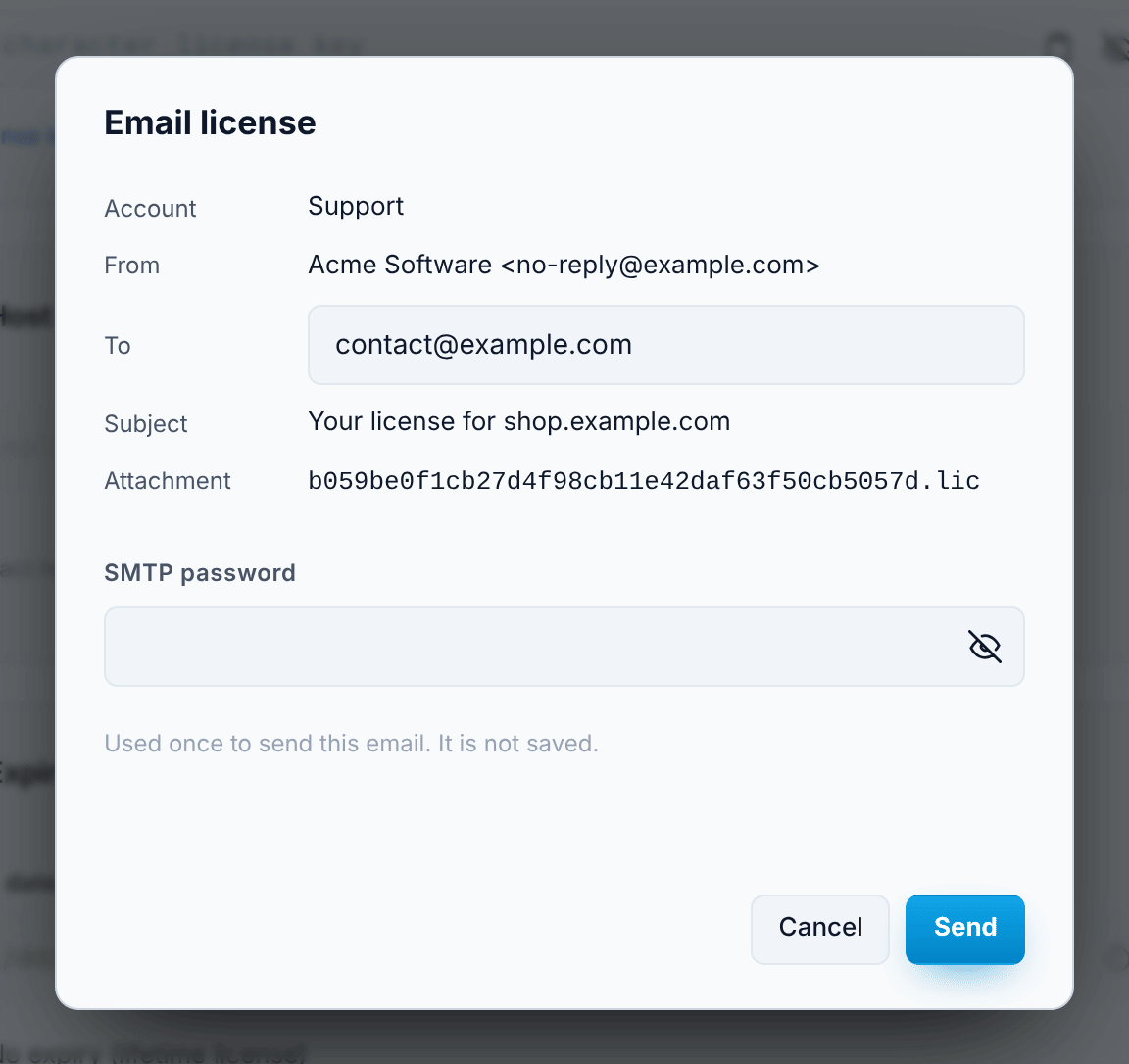
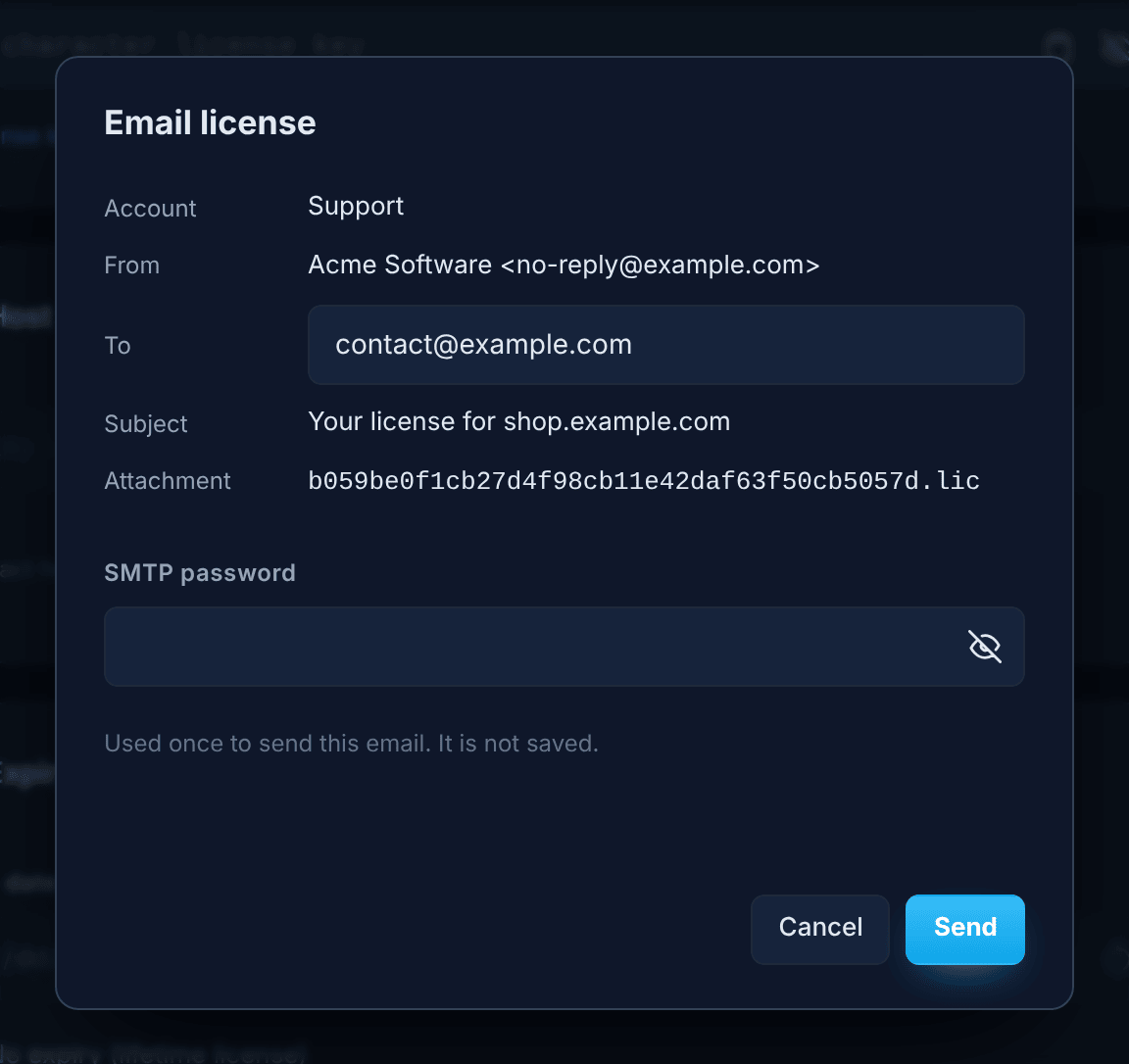
Section titled “Emailing a license”Email license shows what will be sent — the account, the sender, the recipient, the subject and the attached .lic file — before you press Send. You can change the recipient; if the record has no email address yet, tick Save this address to the record to keep it. The address is only saved if the email is sent successfully.
If the account’s SMTP password isn’t saved in your Vault, enter it in the same window. It is used once and not saved.
Set up accounts and templates in Email & Hooks.
Groups
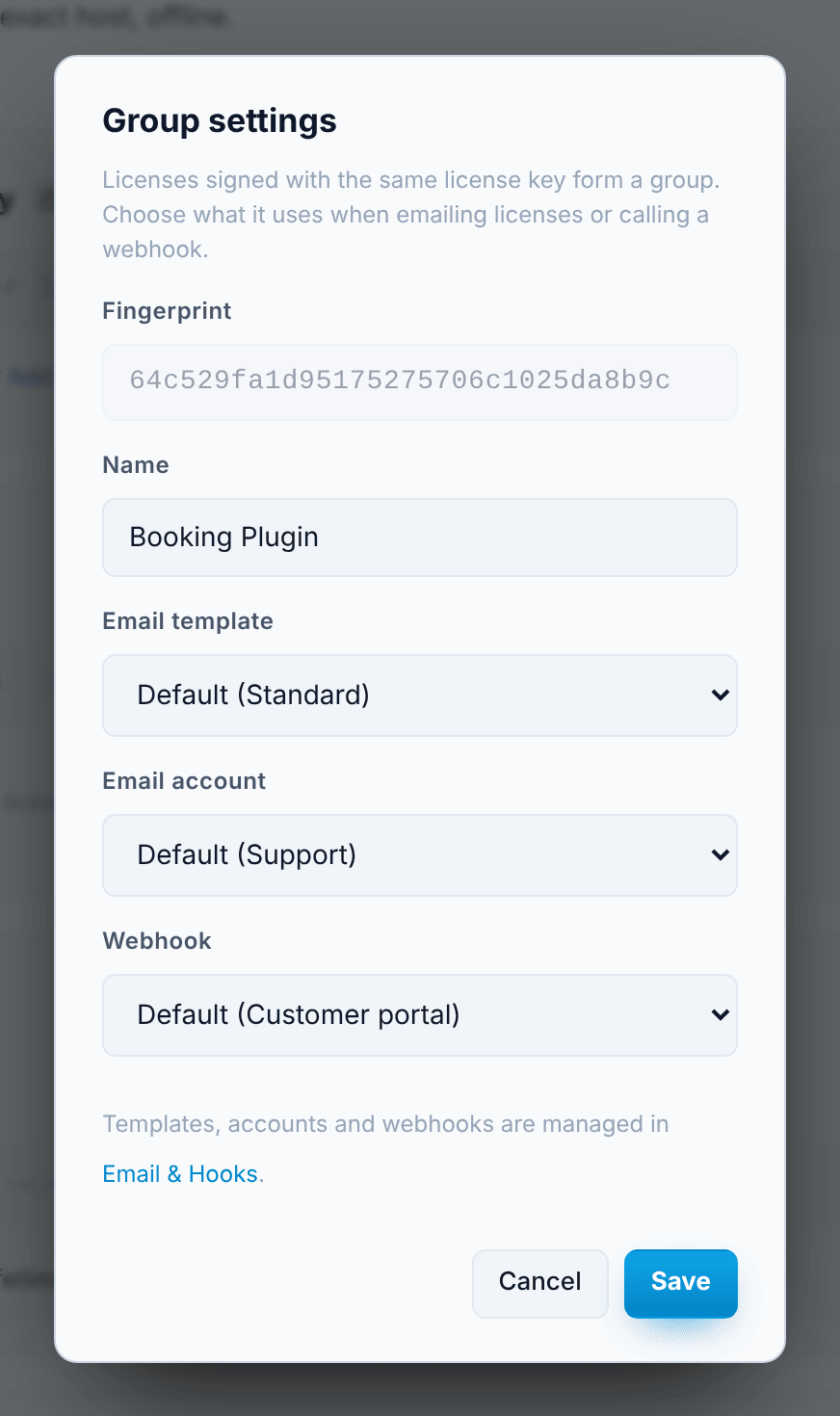
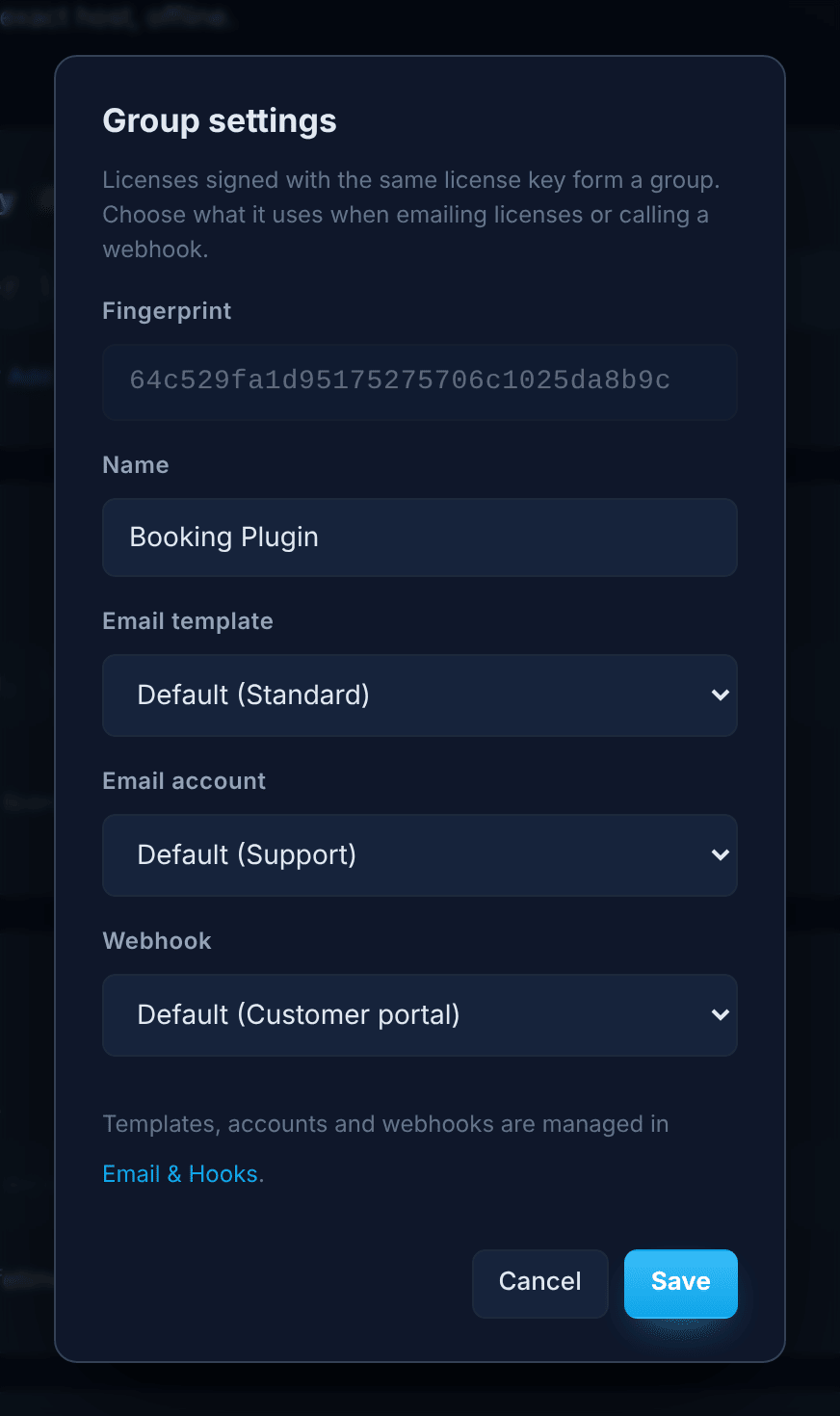
Section titled “Groups”Licenses signed with the same license key form a group. Pick a group in the group filter and press the edit button next to it to open Group settings:
- Name — a friendly name for the group, for example your product’s name. Without one, the group shows a short fingerprint of the key.
- Email template, Email account and Webhook — what this group uses when emailing licenses and calling webhooks. Default uses the current default from Email & Hooks; you can also pick a specific one, or None for no webhook.
Export and clear
Section titled “Export and clear”- Export CSV saves every record — group, host, expiry, customer, email, note, and when it was emailed or sent to the webhook — for a spreadsheet.
- Clear all deletes every record. It doesn’t delete the
.licfiles you saved, and it doesn’t touch your Email & Hooks settings. It can’t be undone.