

Licenser
The Licenser creates a license — a .lic file that lets code protected with the License option run on one host. Signing happens on your computer with your private key; nothing is sent anywhere.
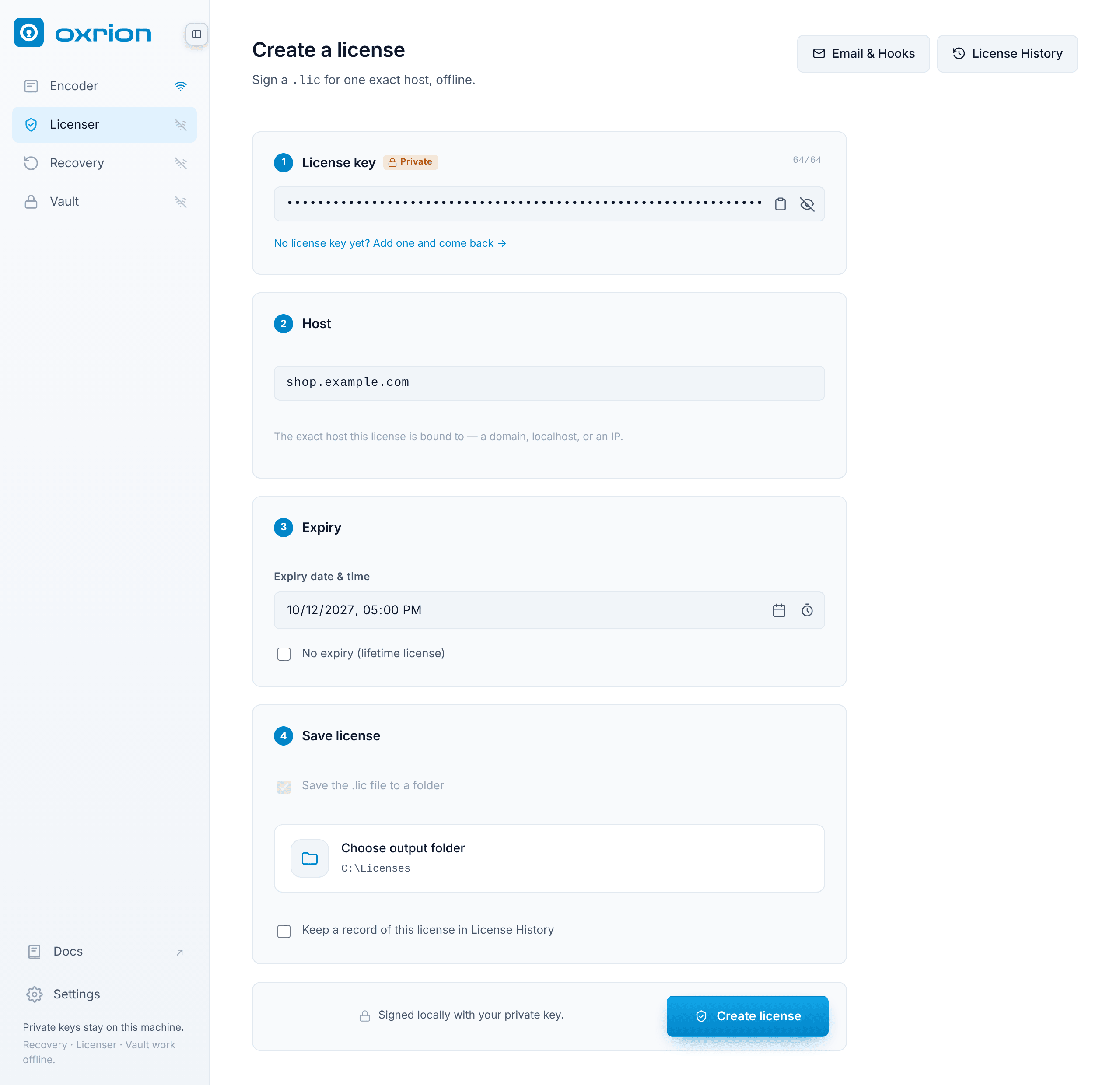
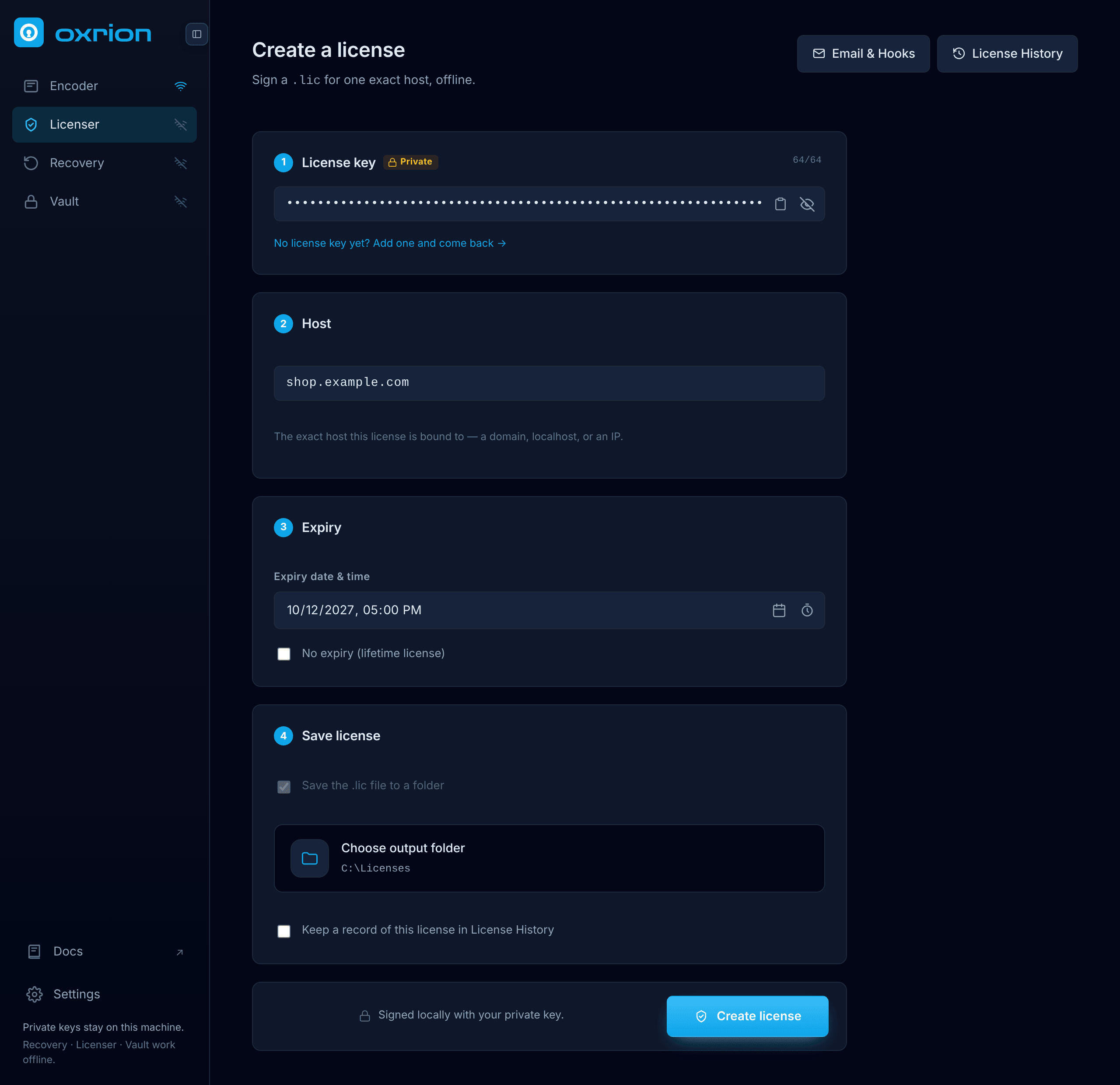
Create a license
Section titled “Create a license”-
License key — paste your license private key, or pick one from your Vault when it’s open. It must be the private key that matches the public key you protected with.
-
Host — the exact host the license is for: a domain,
localhost, or an IP address.example.comandwww.example.comare different hosts. See Hosts. -
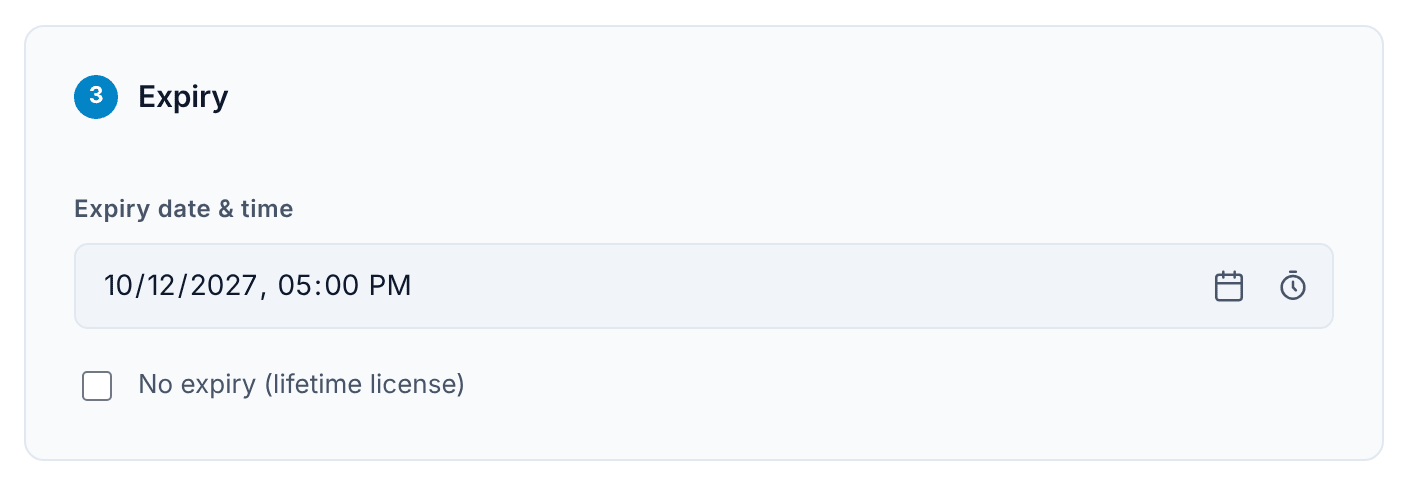
Expiry — the date and time the license stops working, in your computer’s time zone. Type it, pick it from the calendar, or use the period button to set a duration from now (for example 1 year). Tick No expiry (lifetime license) for a license that never expires.
-
Save license — choose the folder where the
.licfile is saved. If you keep a record of the license, you can untick Save the .lic file to a folder: the license is then kept only in License History, and you can save the file from there whenever you need it.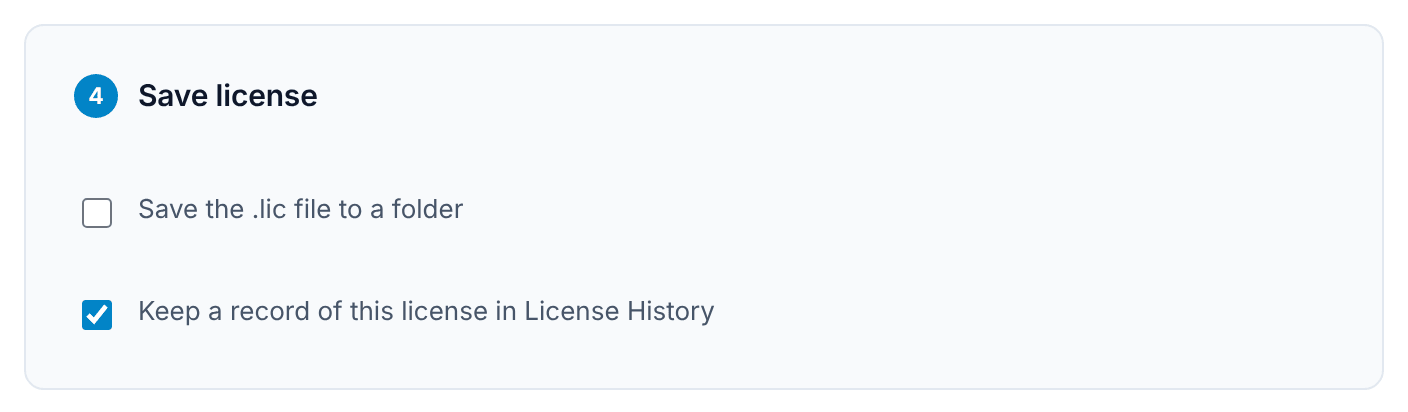
-
Press Create license.
The file is named automatically, for example 4dd390c7e80bd49479aa883814db249106596746.lic. Send it to your customer as it is — don’t rename it. They put it in the root folder of the project. See The license file.
Keep a record
Section titled “Keep a record”Tick Keep a record of this license in License History to remember the license after you create it. A Customer details window opens:
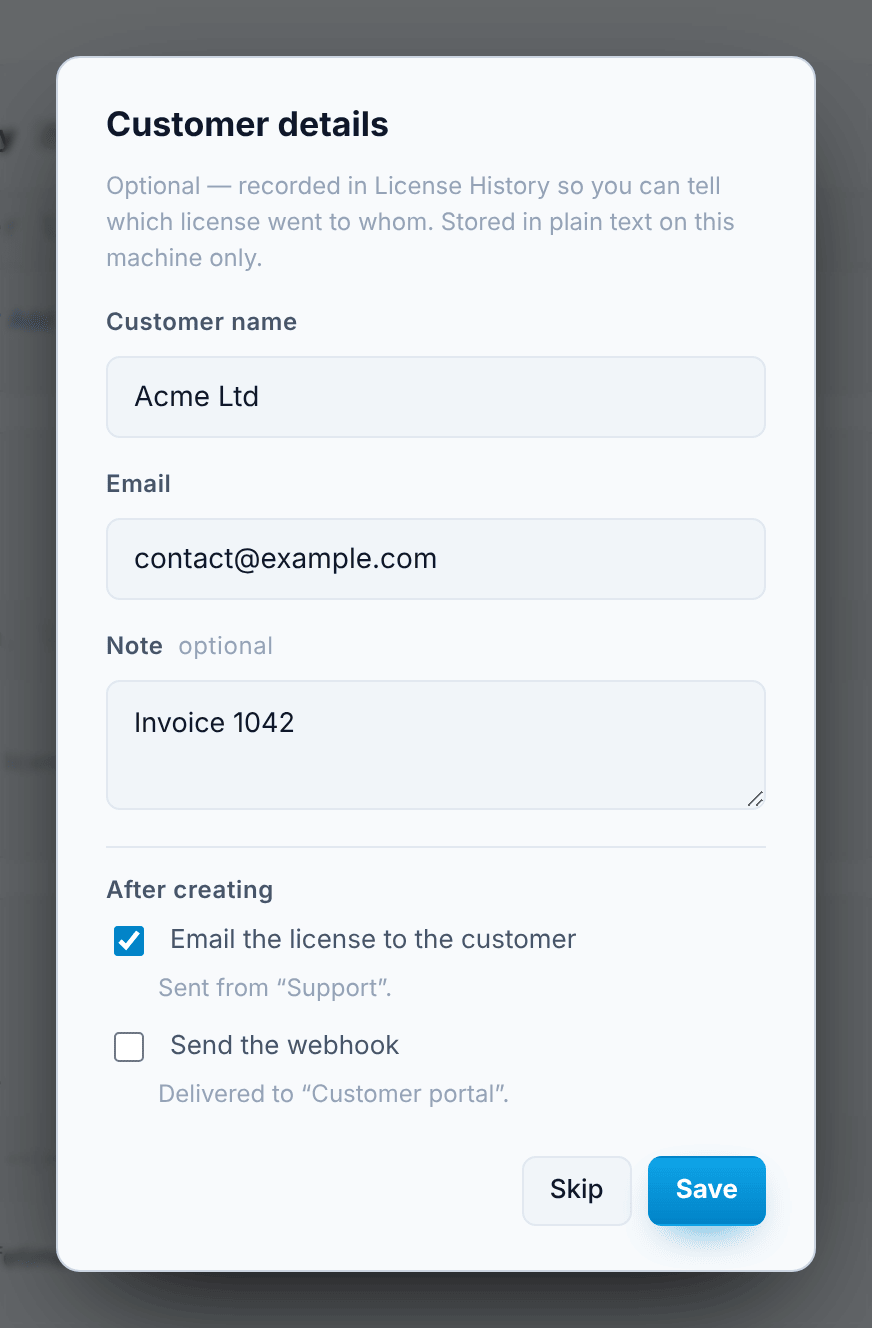
- Customer name, Email and Note — all optional, for your own reference.
- After creating:
- Email the license to the customer — sends the license to the email address above right after it’s created.
- Send the webhook — notifies your own system about the new license.
These two are available once you’ve set up an email account or a webhook in Email & Hooks; otherwise the window tells you what’s missing. If the SMTP password isn’t saved in your Vault, you’re asked for it when the email is sent.
Press Save, then Create license. The result shows where the file was saved and whether the email and webhook went out. If the license is kept in License History only, the result offers Save .lic… to save the file right away. If sending fails, the license is still created and recorded — you can send it again from License History.
Records are stored on your computer only. See Data & privacy.
Renewing a license
Section titled “Renewing a license”Licenses can’t be changed once they’re created. To renew one, create a new license for the same host with a later expiry. In License History, New license from this fills in the host and customer details for you; you add the key and the new expiry. The new file has the same name as the old one, so the customer simply replaces it.
Prefer the command line?
Section titled “Prefer the command line?”oxrion-licenser creates the same licenses from a terminal.