

Recovery
Recovery restores your original source from files that were protected with the Recovery option. It works completely offline. See Recovery for how it works.
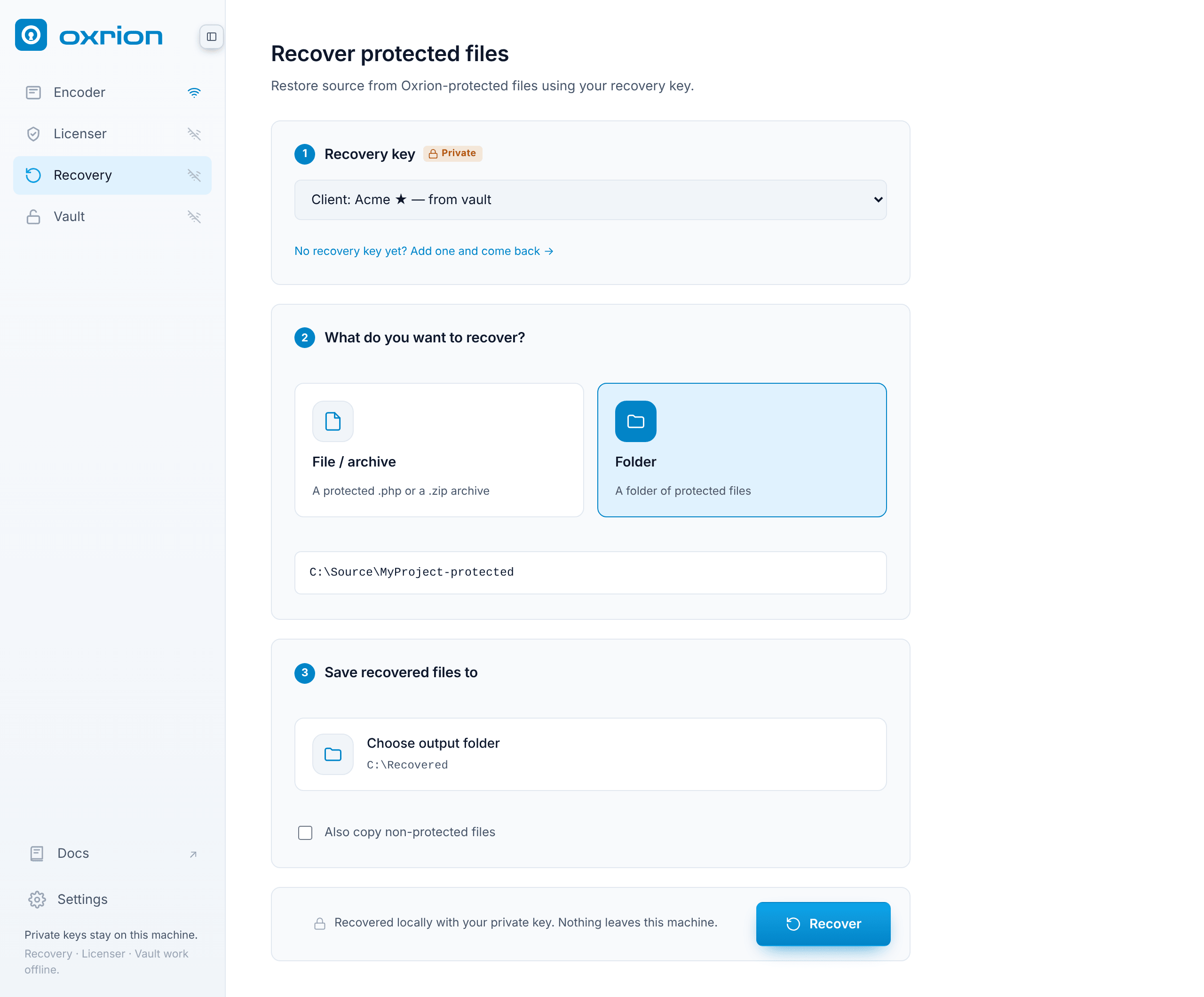
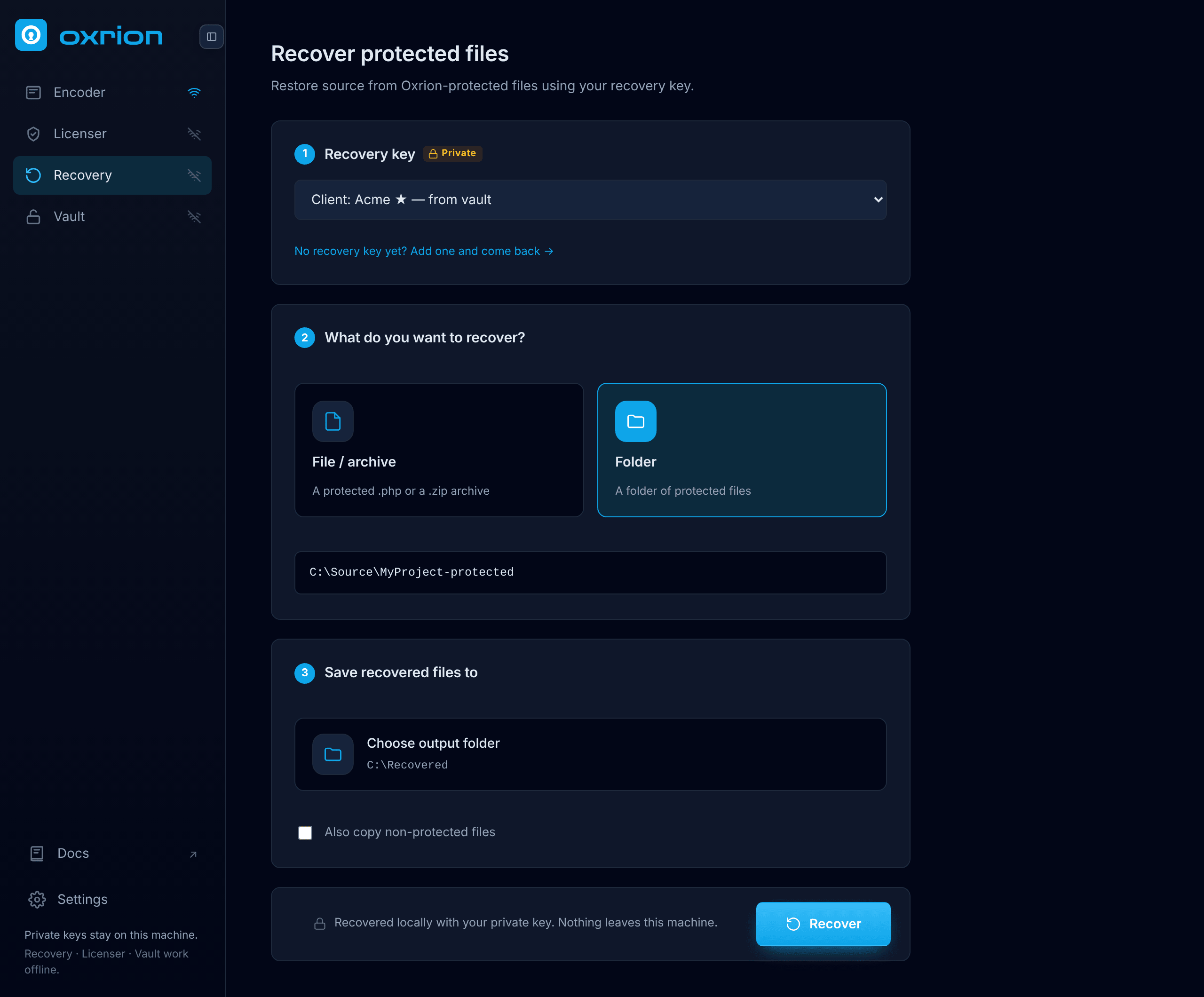
- Recovery key — paste your recovery private key, or pick one from your Vault when it’s open. It must match the public key the files were protected with.
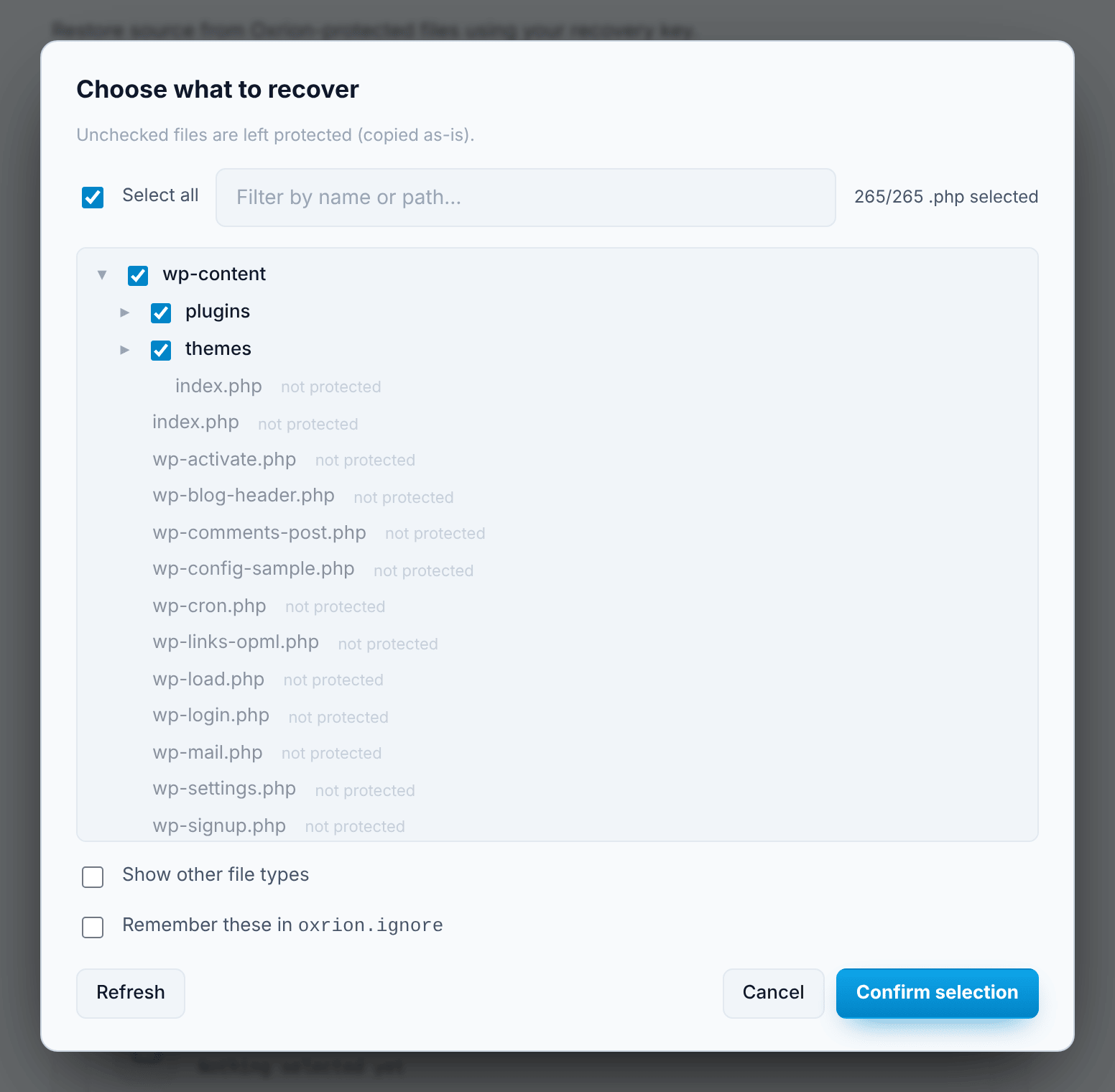
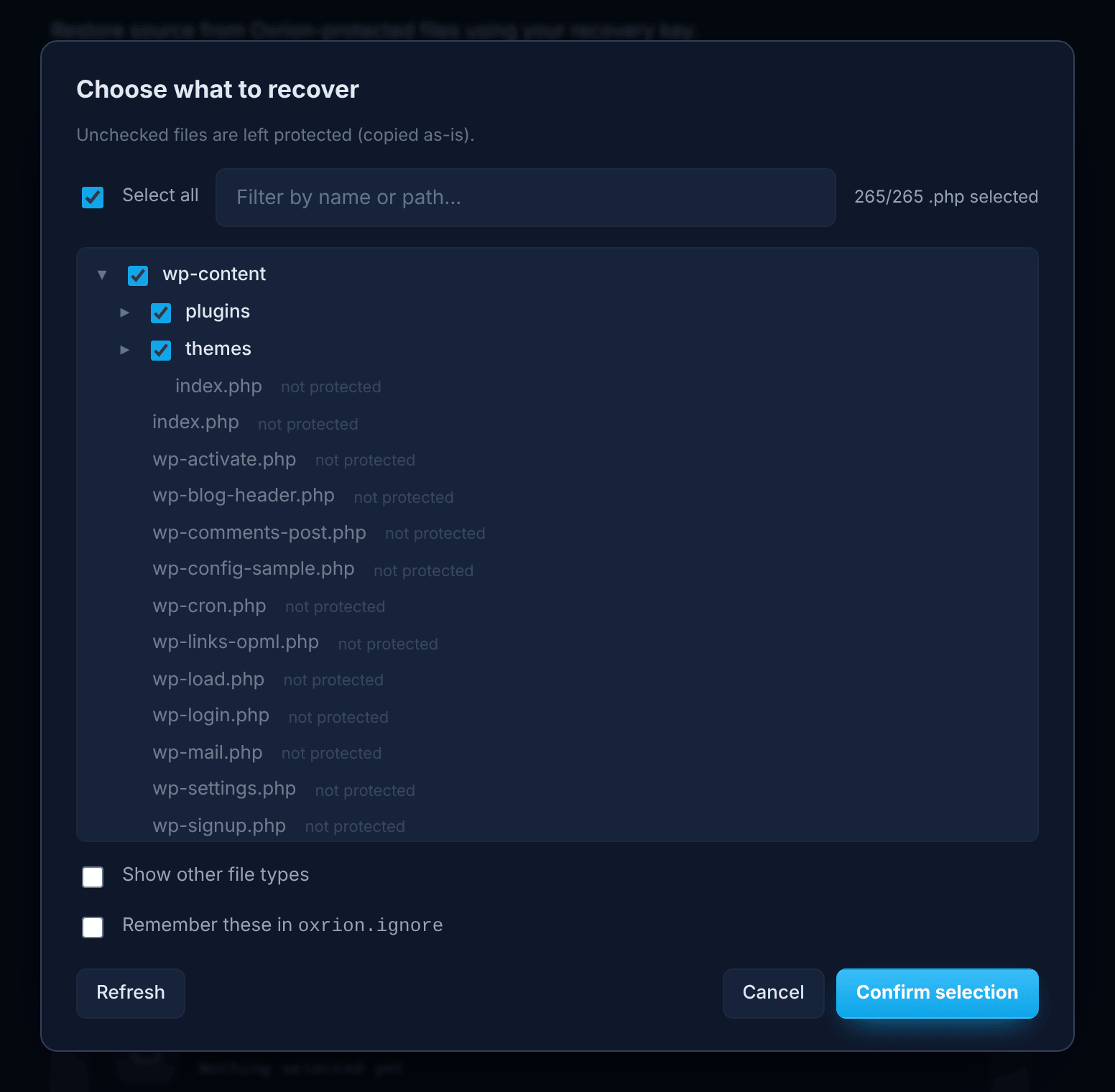
- What do you want to recover? — choose File / archive for a protected
.phpfile or a.ziparchive, or Folder for a folder of protected files. For an archive or a folder, the Choose files window lists the protected files; untick any you don’t want to restore. It works like the one in the Encoder, with Select all and a filter..phpfiles that aren’t protected are marked not protected and can’t be selected; tick Show other file types to see the rest of the project too. - Output folder — choose where the restored files go. It must be outside the files you are recovering.
- Also copy non-protected files (off by default) — tick it to copy everything else (images, templates, files that were never protected) into the output too, so you get the complete project back — except what’s on the never-copy list.
- Press Recover.
When it finishes you see Recovery complete, Recovery finished with errors (some files couldn’t be restored — see View details), or Nothing was recovered. If nothing was recovered, check that the key matches: files protected without Recovery, or with a different recovery key, can’t be restored. Your choices are kept so you can try again with another key.
Prefer the command line?
Section titled “Prefer the command line?”oxrion-recover does the same from a terminal.