

Protection options
When you protect code, you can turn on options that control how the protected files behave. You set them in Oxrion Desktop under Advanced settings on the Encoder screen. Every option is off by default, and they can be combined freely.
| Option | What it does | Available on |
|---|---|---|
| Server lock | Runs only where your external key is present | Paid plans, credits |
| License | Runs only with a valid license for the host | Paid plans, credits |
| Recovery | Lets you restore the source later | Everyone |
| Stamp | Embeds identifying notes in each file | Everyone (custom notes: paid plans, credits) |
| Expiry | Stops the files from running after a date | Paid plans, credits |
Options are part of each protected file. To change them, protect the source again.
Server lock
Section titled “Server lock”Server lock ties the files to an external key that only your server knows. Without that key in the server’s environment, the files don’t run — even a full copy of your server’s files is useless elsewhere.
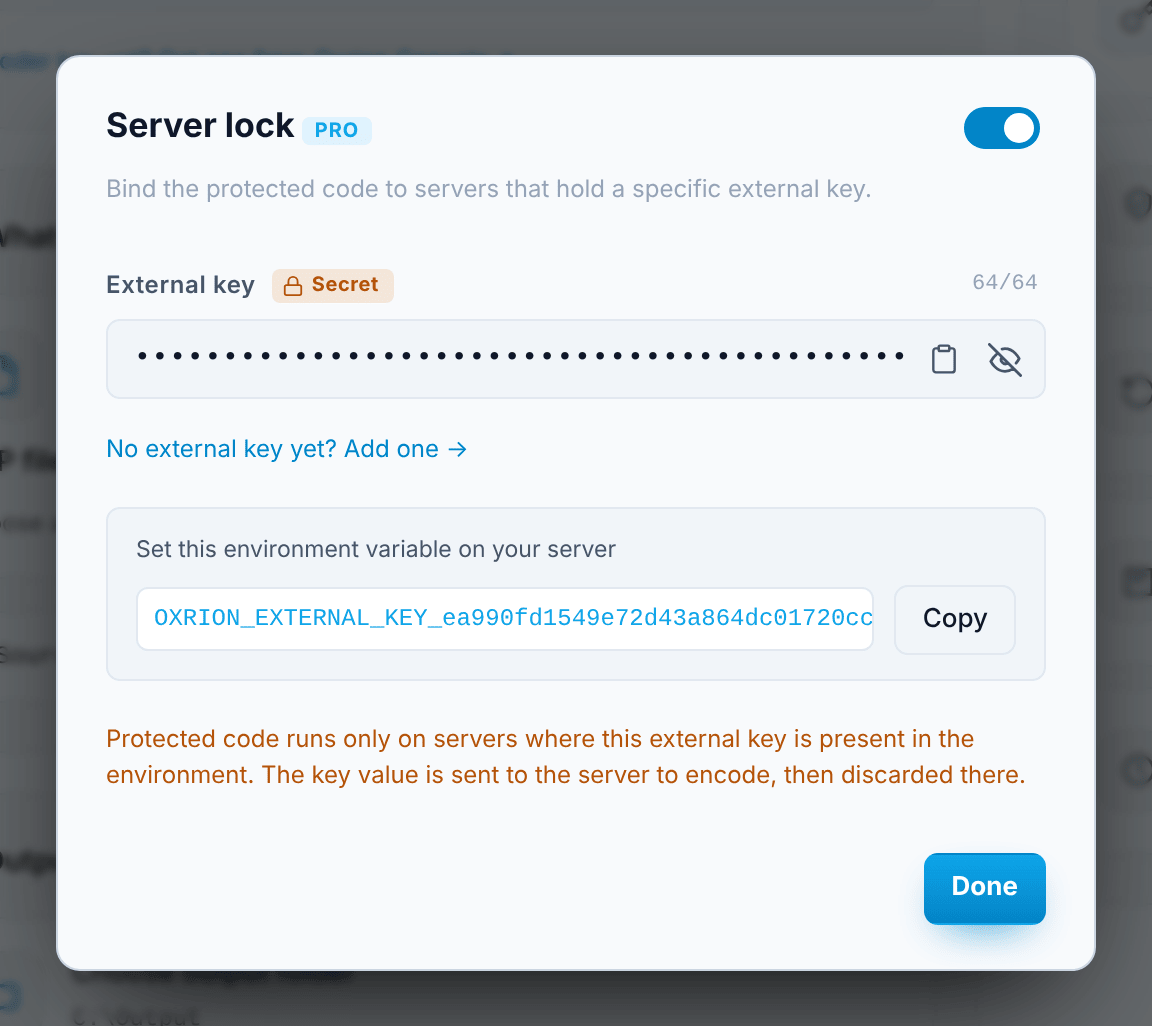
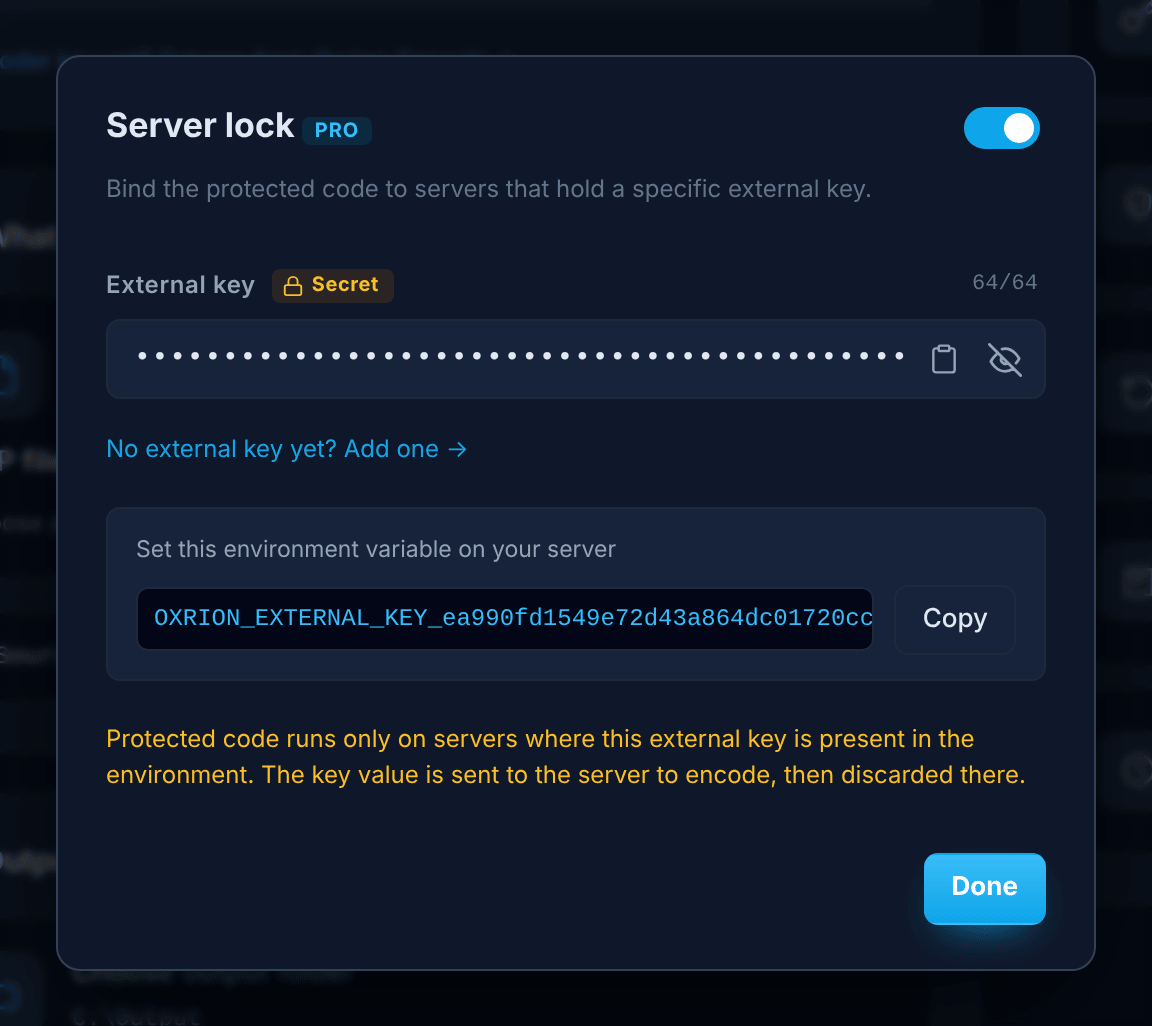
You need an external key, which you create in the Vault. On the server, the key goes into an environment variable named after the key itself:
; PHP-FPM pool configurationenv[OXRION_EXTERNAL_KEY_0123456789abcdef0123456789abcdef] = <your 64-character external key>The Vault shows the exact variable name for each external key, with a copy button. Set it in the process environment (for example a PHP-FPM pool or a systemd unit), not in php.ini. Because each key has its own variable name, one server can run several projects with different external keys.
Windows with Apache and mod_fcgid (for example Laragon): a variable set in Windows’ system settings doesn’t reach PHP, because mod_fcgid passes on only the variables it is told to. Add it to the mod_fcgid configuration instead (in Laragon, etc/apache2/fcgid.conf), then restart Apache:
FcgidInitialEnv OXRION_EXTERNAL_KEY_0123456789abcdef0123456789abcdef <your 64-character external key>SetEnv in .htaccess doesn’t work for this: it sets a request variable, not the environment of the PHP process. To check what PHP sees, run var_dump(getenv('OXRION_EXTERNAL_KEY_…', true)); — the true reads the process environment, as the Loader does.
License
Section titled “License”License binds the files to your license public key. The protected files then run only when a valid license file signed with the matching private key is present, for the host the request comes in on. This is how you sell code to customers: you protect once, and issue a license per customer host.
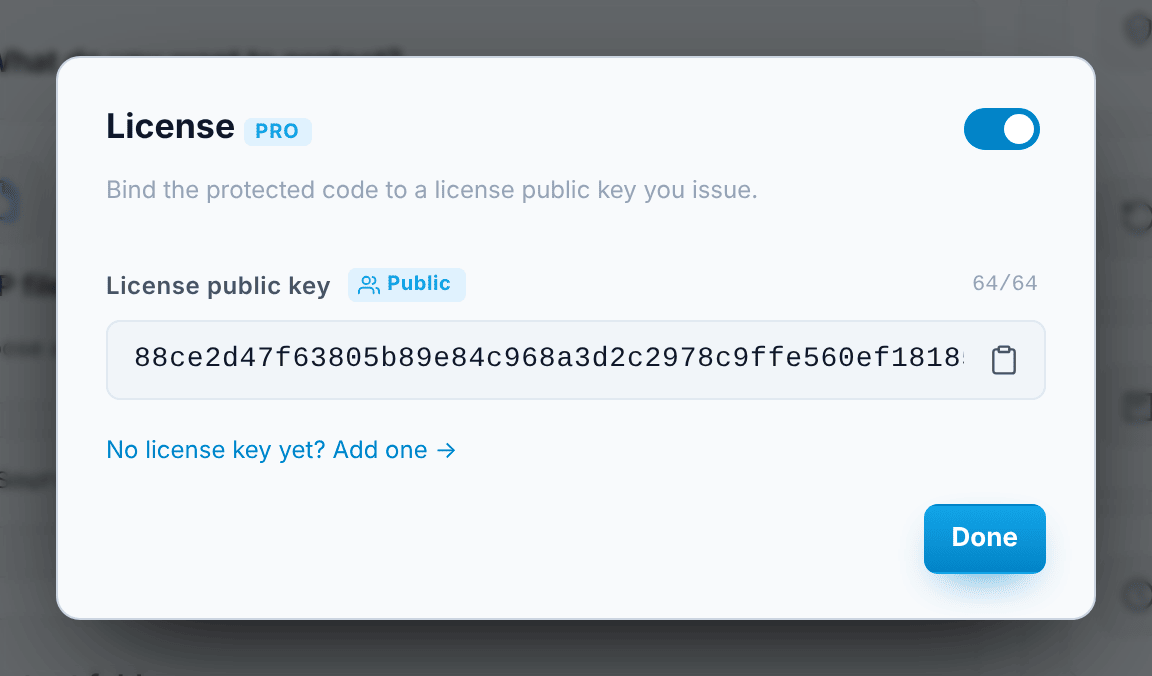
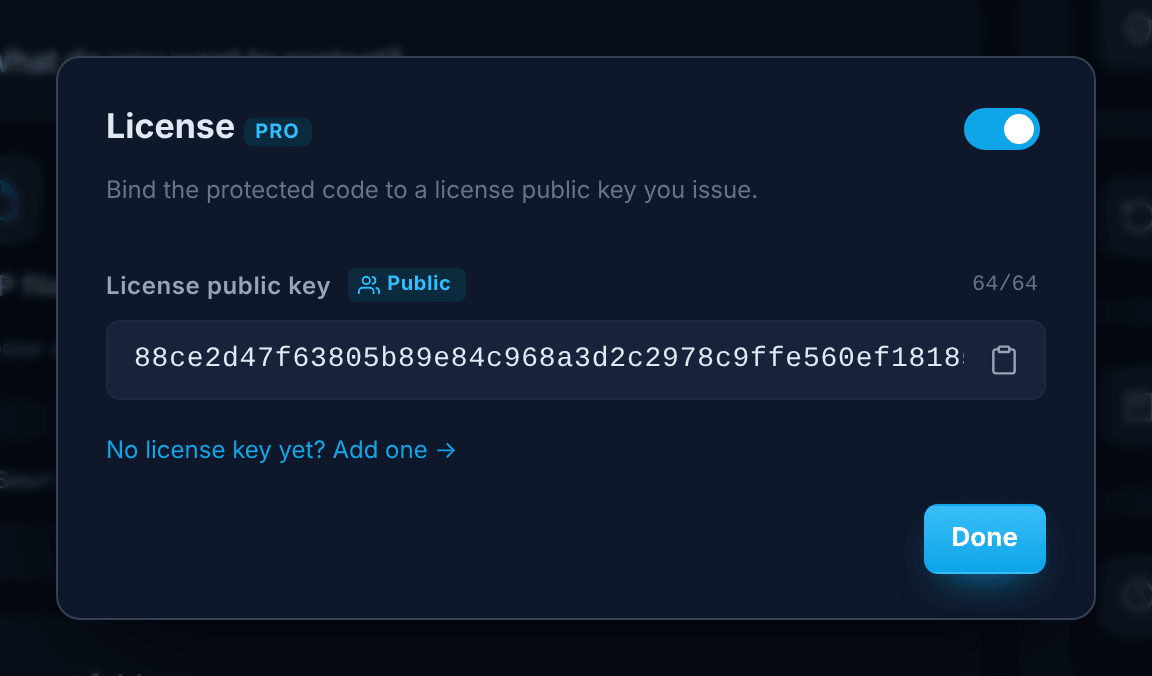
See Licenses for how licenses work, and the Licenser for how to issue them.
Recovery
Section titled “Recovery”Recovery embeds your recovery public key so you can restore the original source later with the matching private key — for example if you lose your source. Recovery is free for everyone and works offline.
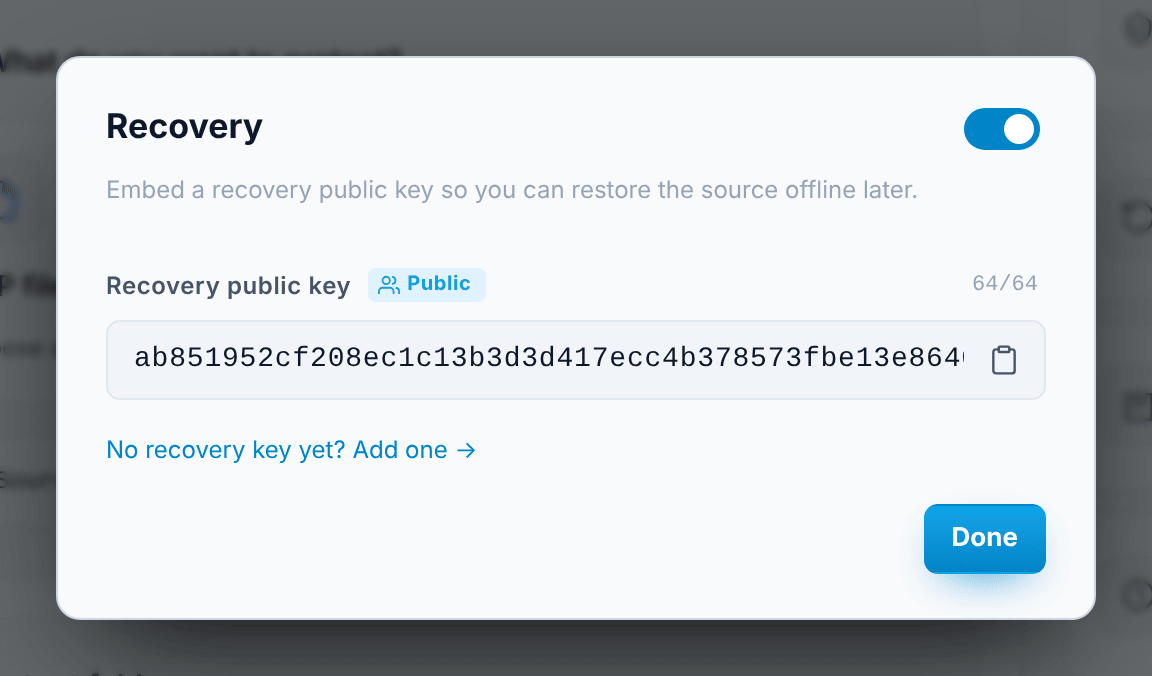
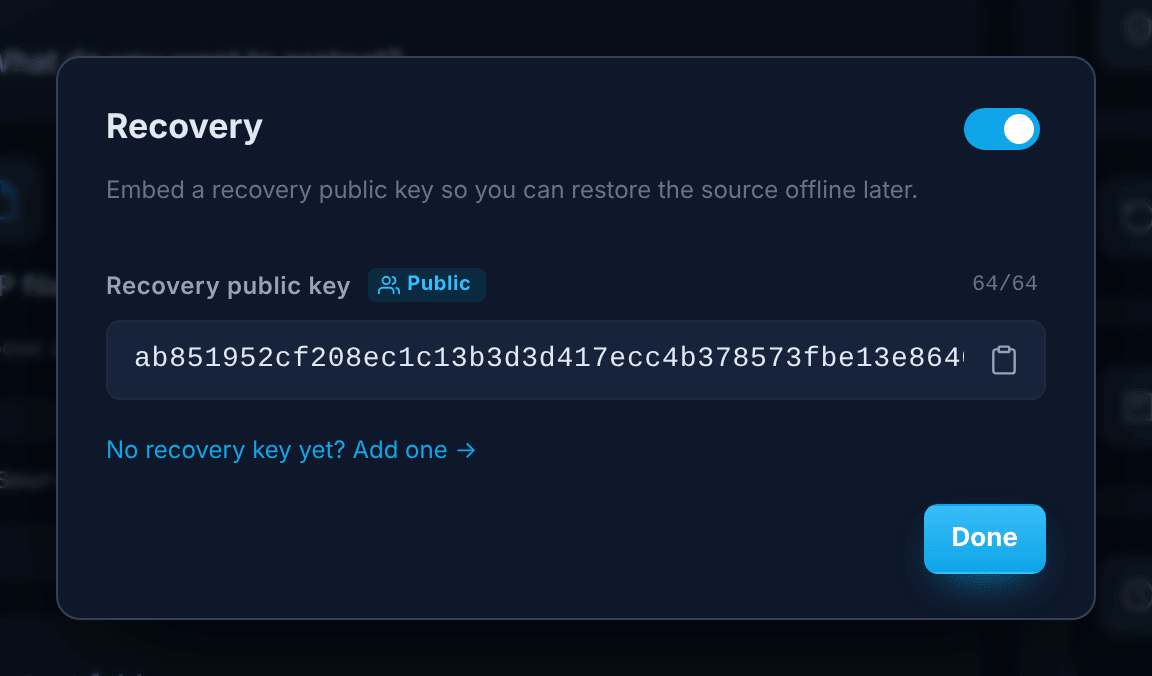
See Recovery.
Stamp writes human-readable notes at the top of every protected file. The notes are part of the file’s signature, so they can’t be changed without breaking the file.
There are two kinds of notes:
- Custom notes — Name, Company, Website and Email. You type these yourself. Available on paid plans and with credits.
- System notes — filled in by Oxrion, free for everyone:
- PID — your subscription ID. It never changes, so it is the same on every file you protect.
- Source SHA-1 — the SHA-1 of the original, unprotected source file. It shows which version of your source a protected file was built from.
- Generated date — when the file was protected.
- Expiry date — when the file stops running: the 30-day term on Free, or the date you set with Expiry. Files without an expiry say that they never expire. This note only shows the date; it doesn’t change it.
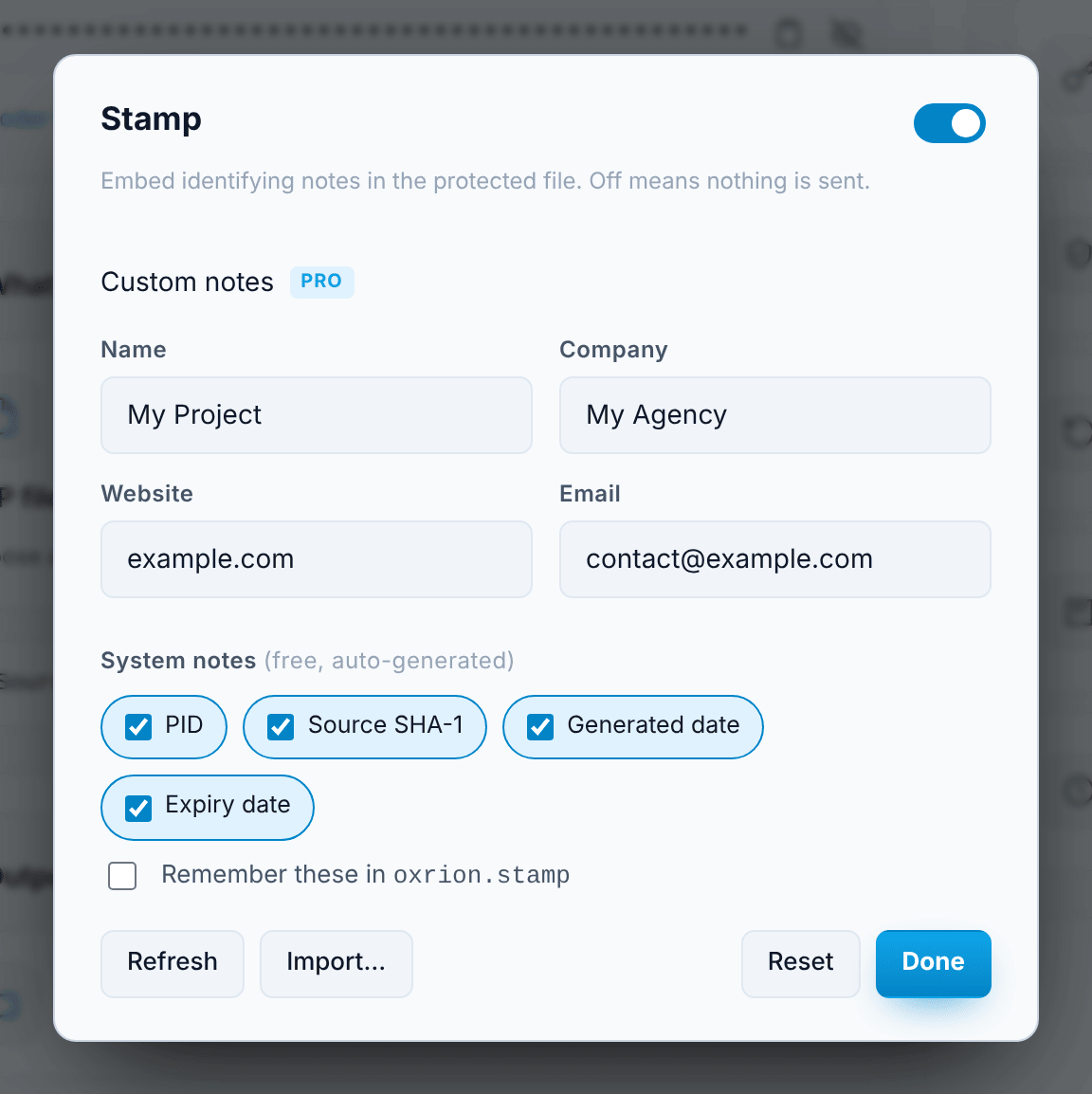
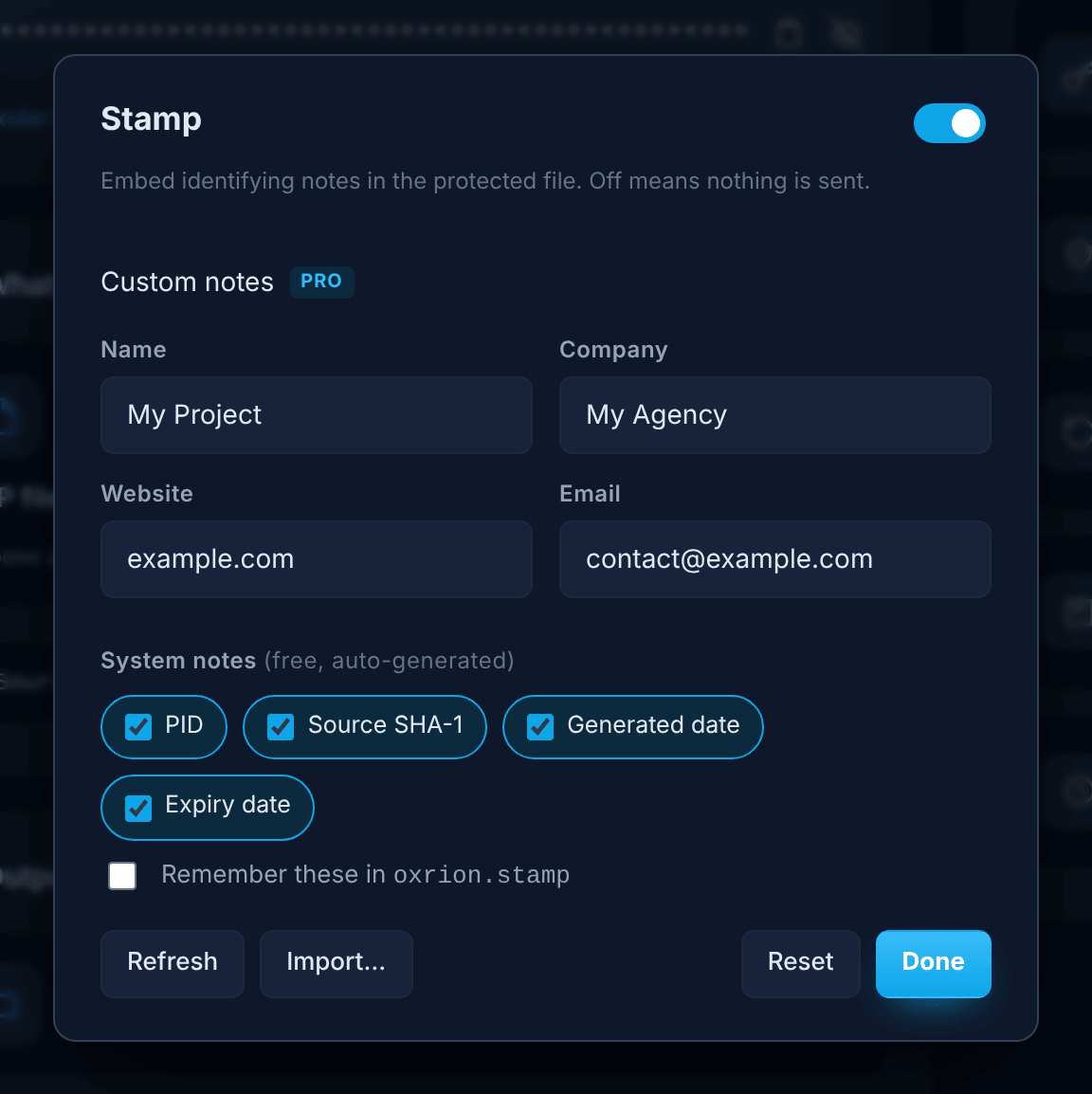
You can save your Stamp settings in the project folder so they come back next time. See Project files.
Expiry
Section titled “Expiry”Expiry makes the protected files stop running after a date and time you choose. Use it for trials, demos or time-limited deliveries.
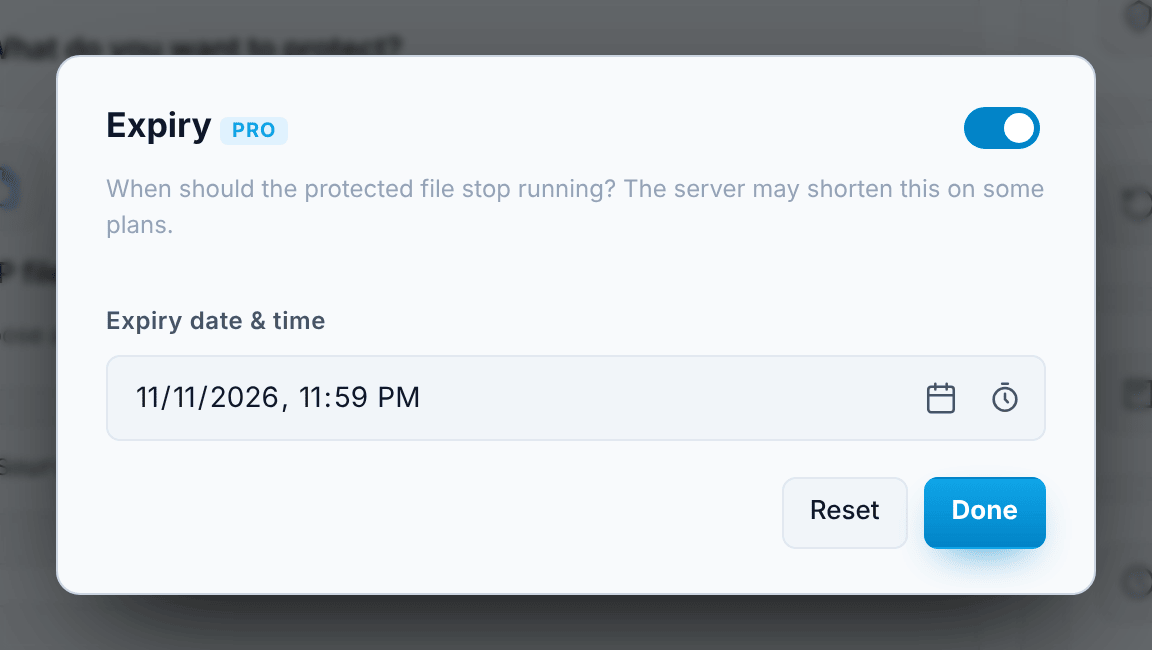
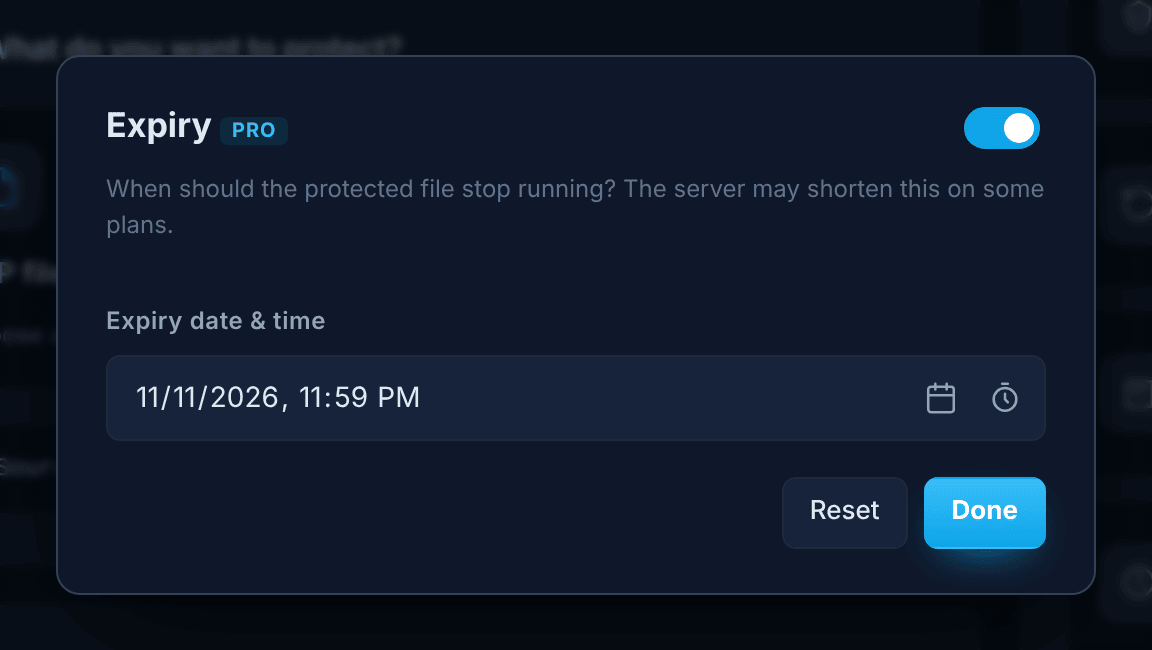
File expiry is different from license expiry: it belongs to the files themselves, applies on every host, and can’t be extended without protecting again. See Expiry explained.
Options and your plan
Section titled “Options and your plan”On the Free plan, the paid options can still be opened and tried in Oxrion Desktop, so you can see how they work. When you confirm an option your plan doesn’t include, Oxrion Desktop tells you and keeps the option window open. Before protecting, it also lists any enabled options your plan doesn’t include, so files are never protected without an option you expected.
If you switch to an Encoder Key whose plan doesn’t include an option you already turned on, that option shows a warning sign (ON ⚠) in Advanced settings.
Protecting with credits unlocks every option, even without a subscription.