

Encoder
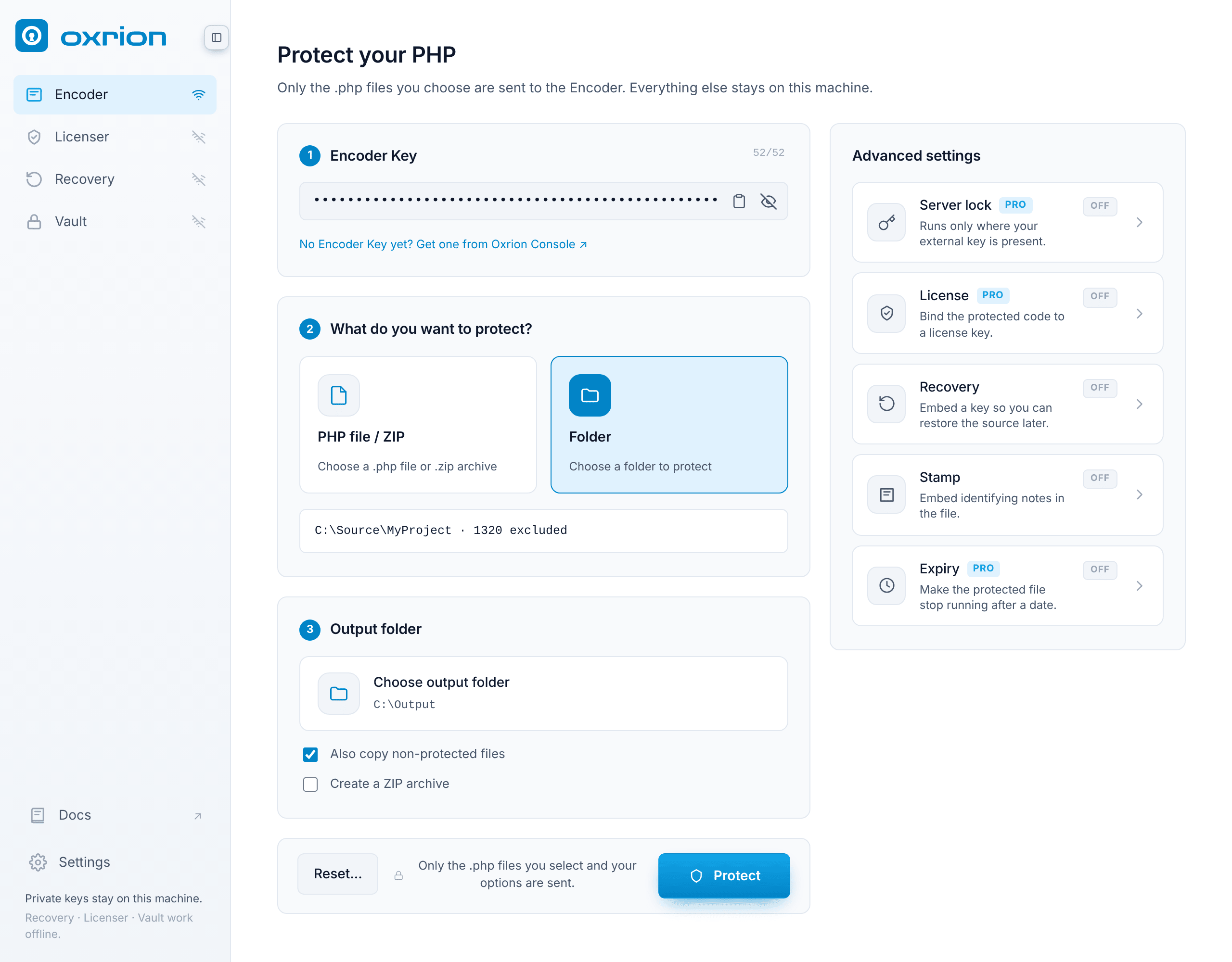
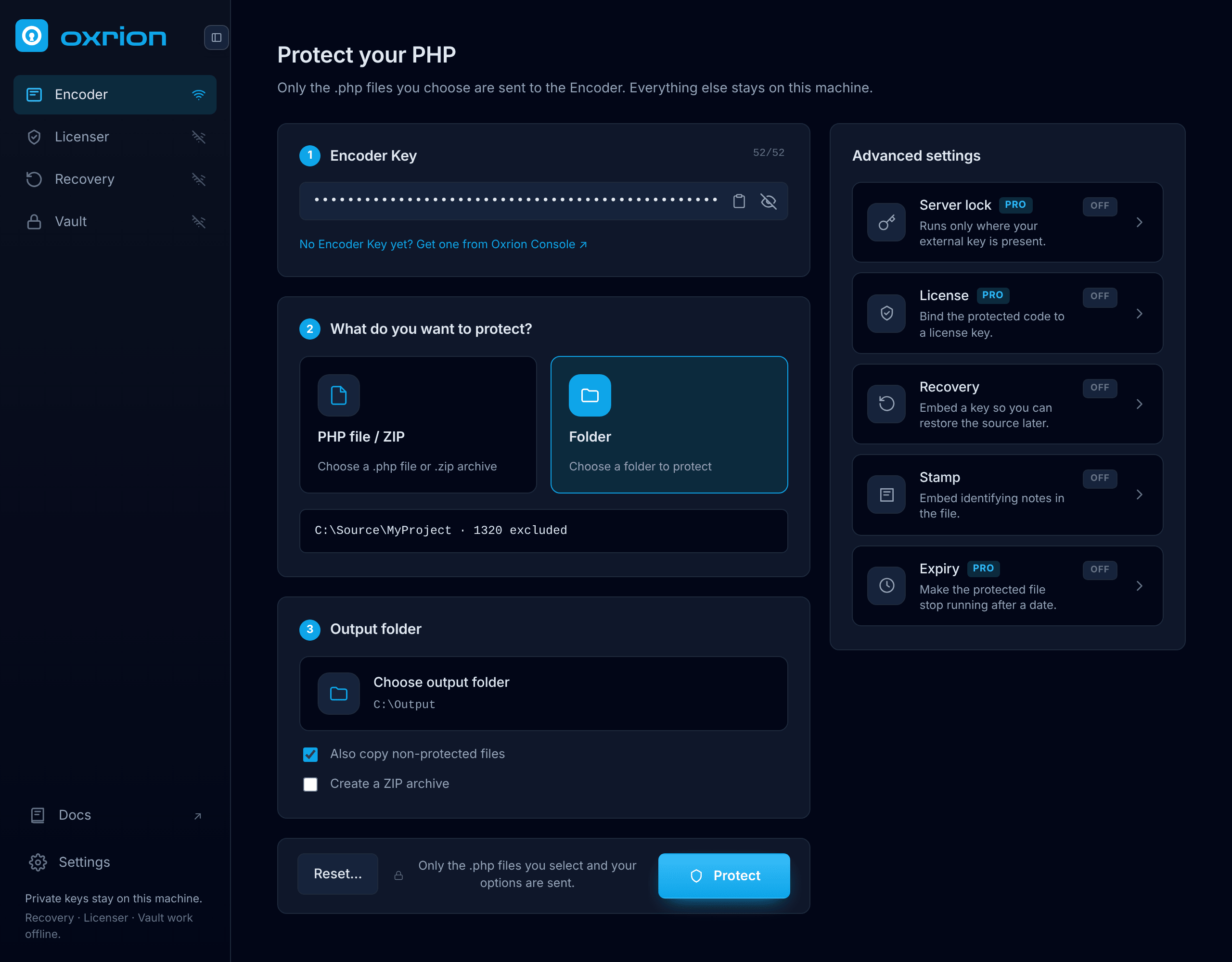
The Encoder protects your PHP code. Only the .php files you select are sent to Oxrion; everything else stays on your computer.
1. Encoder Key
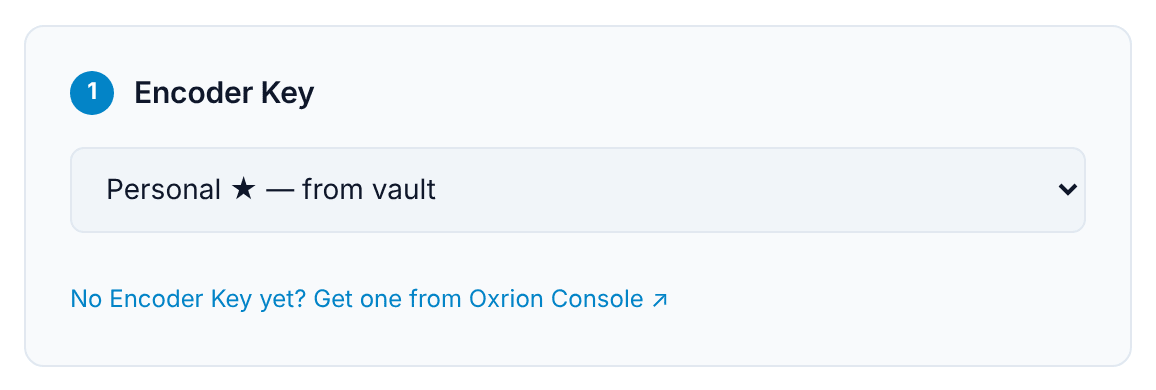
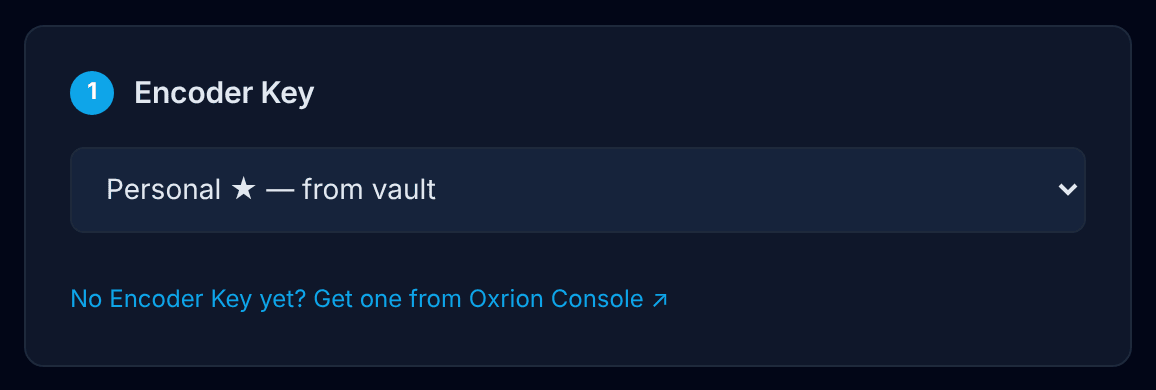
Section titled “1. Encoder Key”Paste your key into Encoder Key, or, if your Vault is open, pick a saved key from the list (your default key is selected for you). Don’t have a key yet? Get one from the Oxrion Console — see Account & Encoder Key.
2. What do you want to protect?
Section titled “2. What do you want to protect?”Choose PHP file / ZIP for a single .php file or a .zip archive, or Folder for a project folder.
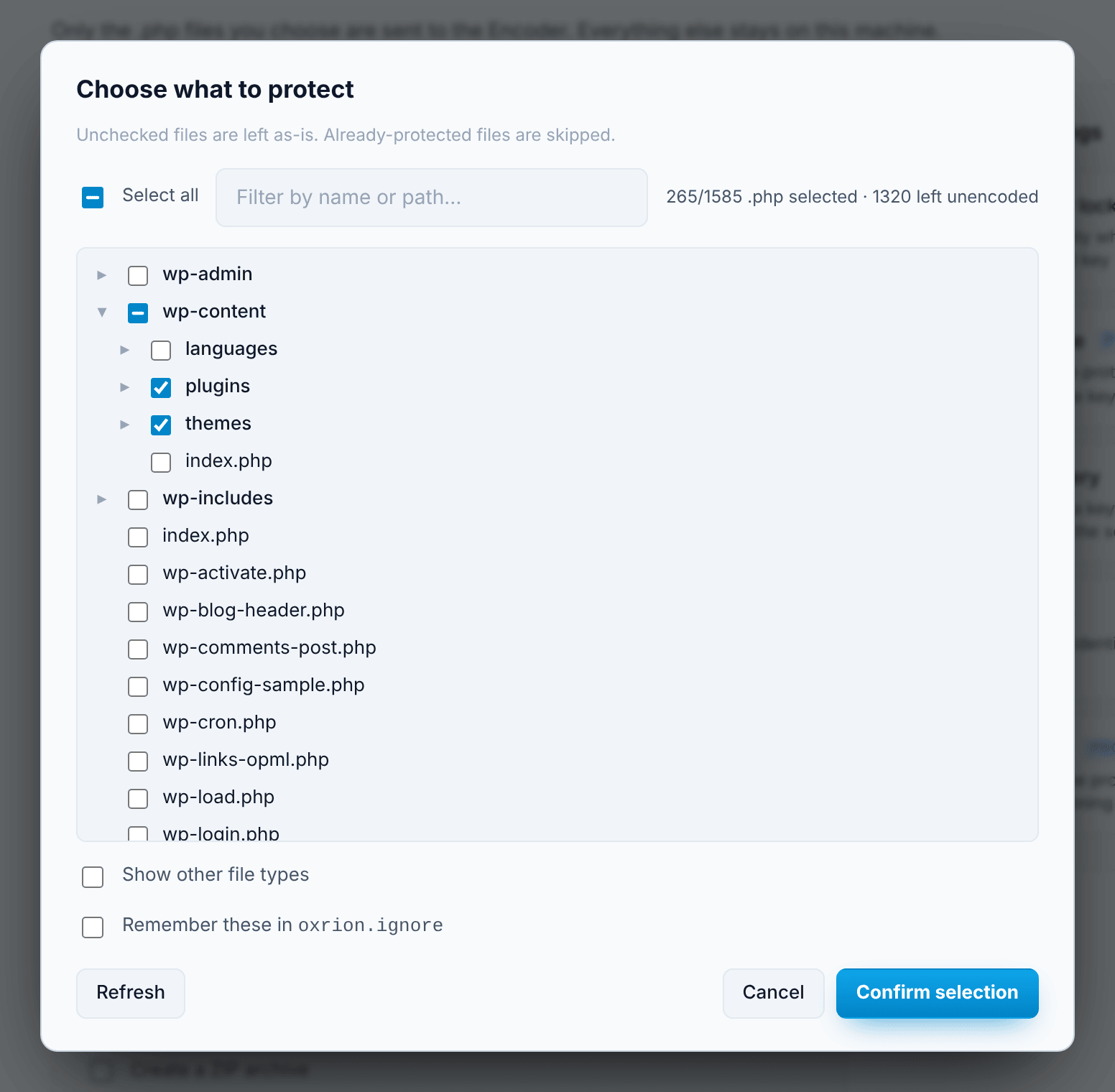
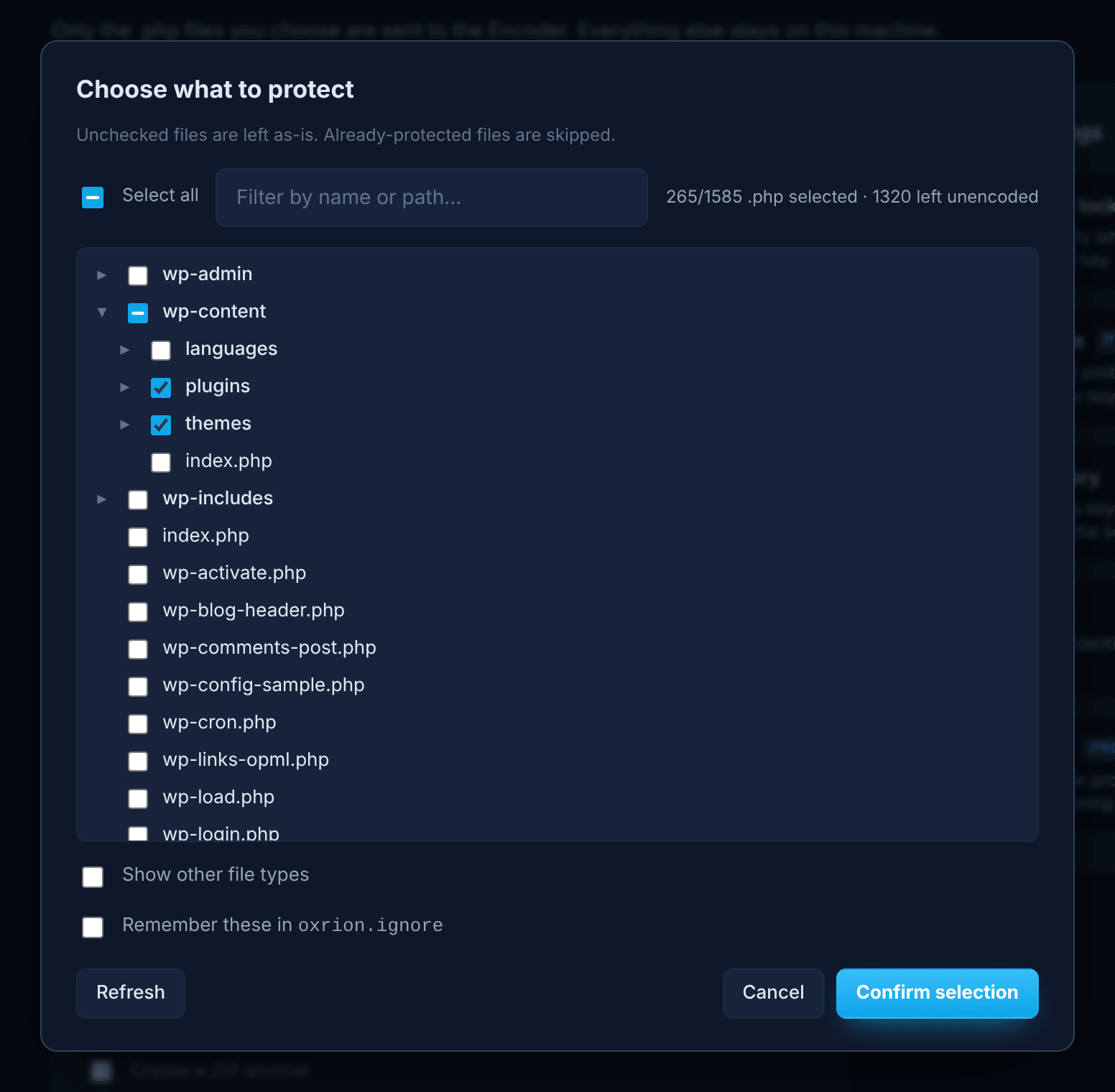
For a .zip or a folder, the Choose files window opens and lists the project’s files:
- Every
.phpfile has a checkbox and is selected by default. Untick the files and folders you don’t want to protect, or use Select all to tick or clear everything at once. - Use the filter to find files by name or path. While a filter is typed, Select all applies only to the matching files.
- Folders start collapsed; click the arrow to open one. When everything is inside one top-level folder, as in most plugin archives, that folder starts open.
- Only
.phpfiles are listed. Tick Show other file types to see the rest of the project too, marked stays as-is. Entries on the never-copy list are marked never copied. This only changes the list: whether those files go into the output is decided by Also copy non-protected files below. - Files that are already protected are marked already protected and can’t be selected.
- Tick Remember these in oxrion.ignore to save your choice in the project folder, so it is selected the same way next time. See Project files.
- Press Confirm selection.
3. Output folder
Section titled “3. Output folder”Choose where the protected files go. The output folder must be outside the files you are protecting.
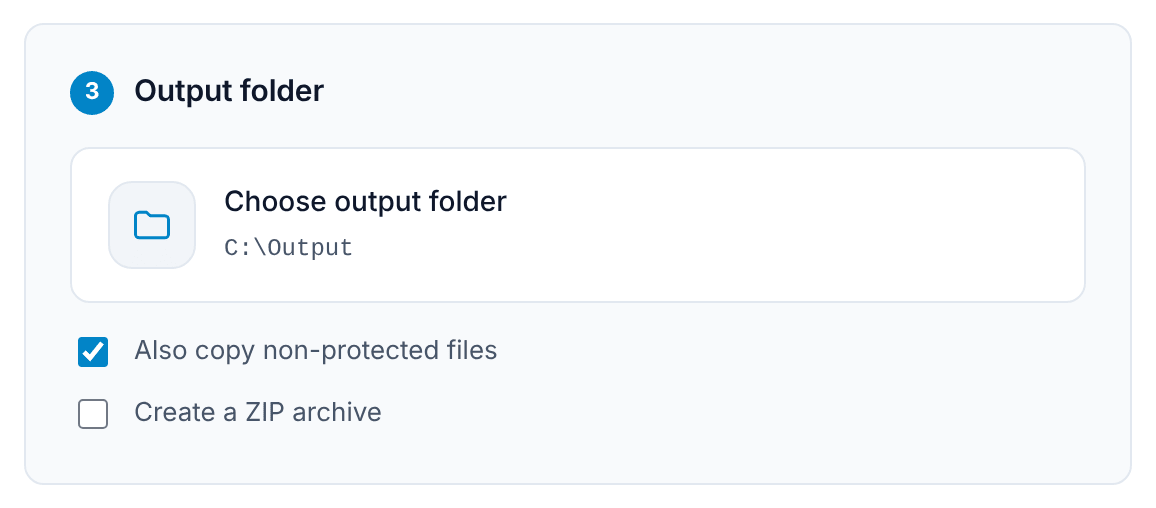
Also copy non-protected files (on by default) copies everything you didn’t protect — images, templates, other files, and the .php files you left out — into the output as they are, so the output is a complete, ready-to-upload copy of your project. Turn it off to get only the protected files. Either way, what’s on the never-copy list in Settings — by default version control folders such as .git and .env files — is left out.
Create a ZIP archive writes a single .zip into the output folder instead of loose files, ready to upload or to send to a customer. The archive has the same layout as what you protected:
| You protect | You get |
|---|---|
A folder my-plugin | my-plugin.zip, with everything inside a my-plugin/ folder — the layout WordPress expects for plugins and themes |
An archive my-plugin.zip | my-plugin.zip, laid out like the original |
A file index.php | index.zip |
An archive with the same name already in the output folder is replaced. Your input .zip itself is never overwritten: if the output folder is the one it’s in, you’re asked to choose another.
Advanced settings
Section titled “Advanced settings”The panel on the right holds the protection options. Each row opens a window where you turn the option on and fill in what it needs; the row then shows ON or OFF.
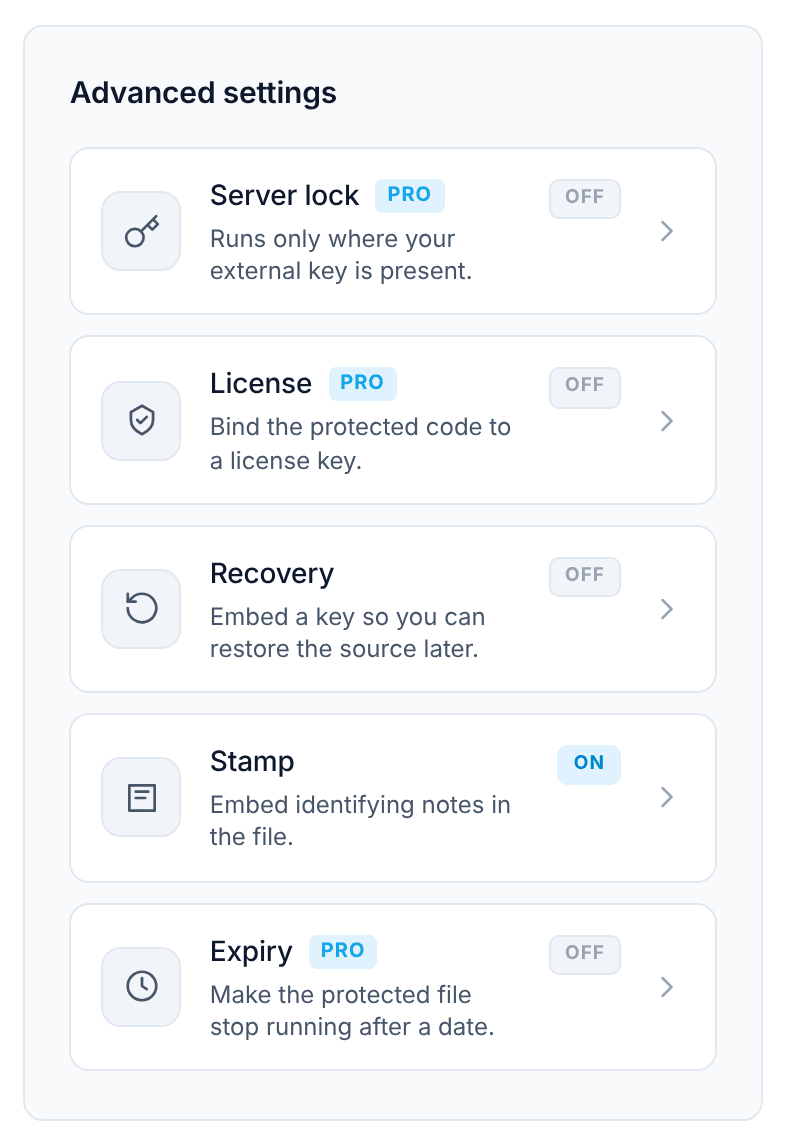
| Row | What you fill in |
|---|---|
| Server lock | An external key — paste one or pick it from your Vault. The window shows the environment variable to set on your server, with a copy button. |
| License | Your license public key. |
| Recovery | Your recovery public key. |
| Stamp | Custom notes (Name, Company, Website, Email) and system notes (PID, Source SHA-1, Generated date, Expiry date). Tick Remember these in oxrion.stamp to keep them for the project, or Import… them from another .stamp file. |
| Expiry | A date and time. Type it, pick it from the calendar, or use the period button to set it as a duration from now (for example 2 weeks). |
Server lock, License, Expiry and Stamp’s custom notes need a paid plan or credits. You can always open them and try them; if your plan doesn’t include an option you turn on, pressing Done shows a note and keeps the window open, so you can turn it off or upgrade in the Oxrion Console. If you later switch to an Encoder Key whose plan doesn’t include an option that is on, its row shows ON ⚠.
Protect
Section titled “Protect”Press Protect.
- Checking… — Oxrion first checks your key, your connection, your remaining quota, and that your plan includes the options you turned on. If something is wrong, you find out right away, before any file is sent.
- Preparing… and a progress bar — the files are protected.
When it finishes you see one of:
- Protection complete — every selected file was protected.
- Protection finished with errors — some files couldn’t be protected. They are listed in View details and in
OXRION-FAILED-FILES.txtin the output folder (or inside the archive), and they are left out of the output — never copied unprotected. - Nothing was protected — no file could be protected. Your selection is kept so you can try again.
The result also shows how much of your quota is left. See Plans, quota & credits.
Reset… clears what you choose — the selected files, the output folder, the Server lock, License and Recovery keys, the Stamp, or the Expiry — and leaves the rest.
Common messages
Section titled “Common messages”| Message | What to do |
|---|---|
| Oxrion didn’t accept this Encoder Key | Check the key, or generate a new one in the Oxrion Console. Only your newest key works. |
| Service unavailable | Oxrion couldn’t be reached. Check your internet connection and press Refresh. |
| Insufficient quota | More files are selected than your quota allows. Press Select files to protect fewer, wait for your quota to renew, or use credits. See Plans, quota & credits. |
| Some options aren’t in your plan | Turn those options off, upgrade your plan, or choose Protect without them. |