

Email & Hooks
Email & Hooks is where you set up how Oxrion Desktop delivers licenses: email templates, the email accounts that send them, and webhooks that notify your own system. Open it with the Email & Hooks button at the top of the Licenser.
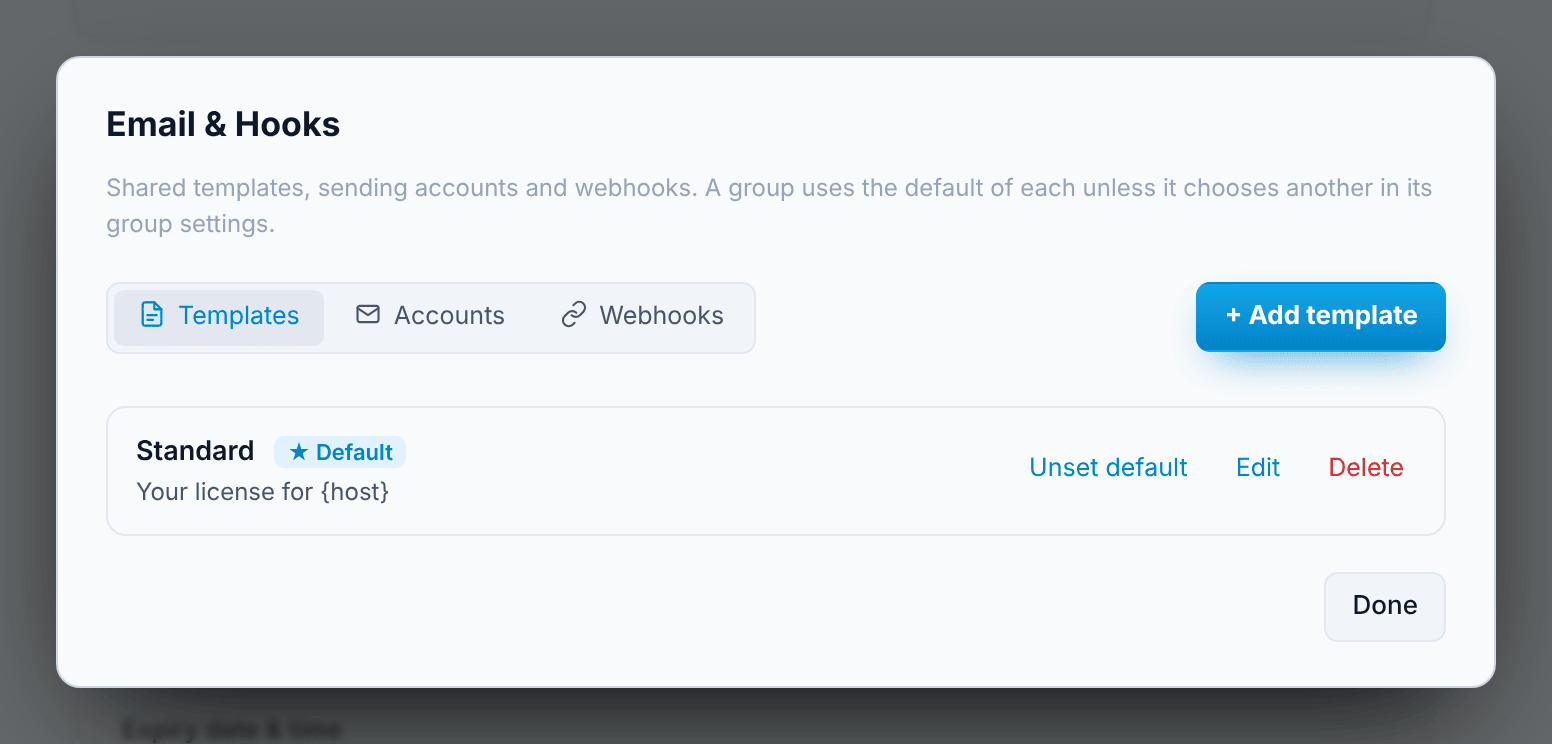
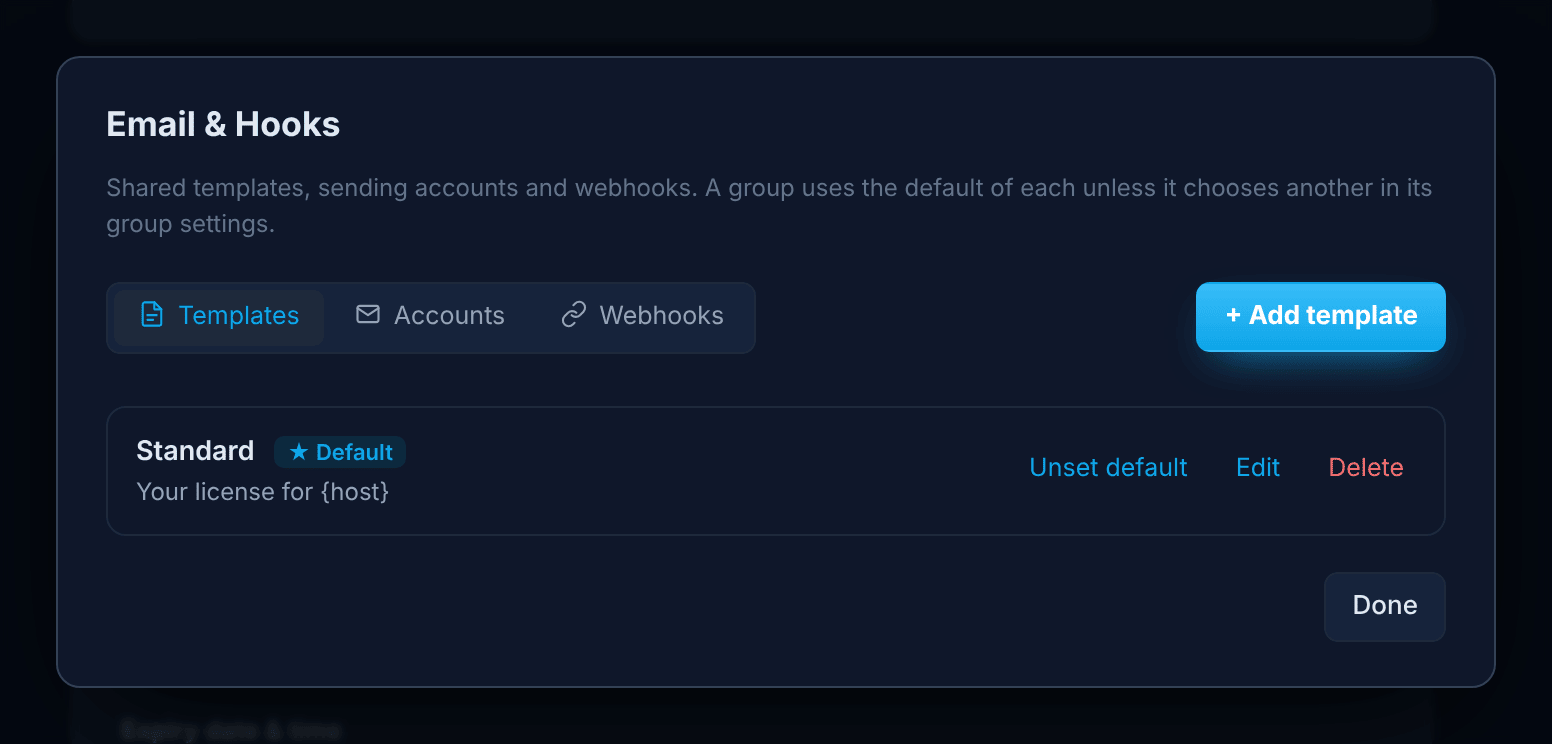
It has three tabs — Templates, Accounts and Webhooks. In each, you can add as many entries as you like, edit or delete them, and mark one as the default.
How groups use them
Section titled “How groups use them”Every group of licenses uses a template, an account and a webhook. By default a group uses whatever is marked as default here, so you can set things up once for all your products. To use something else for one product, choose it in that group’s Group settings.
If you delete an entry that a group uses, that group switches back to the default.
Templates
Section titled “Templates”A template is the email your customer receives.
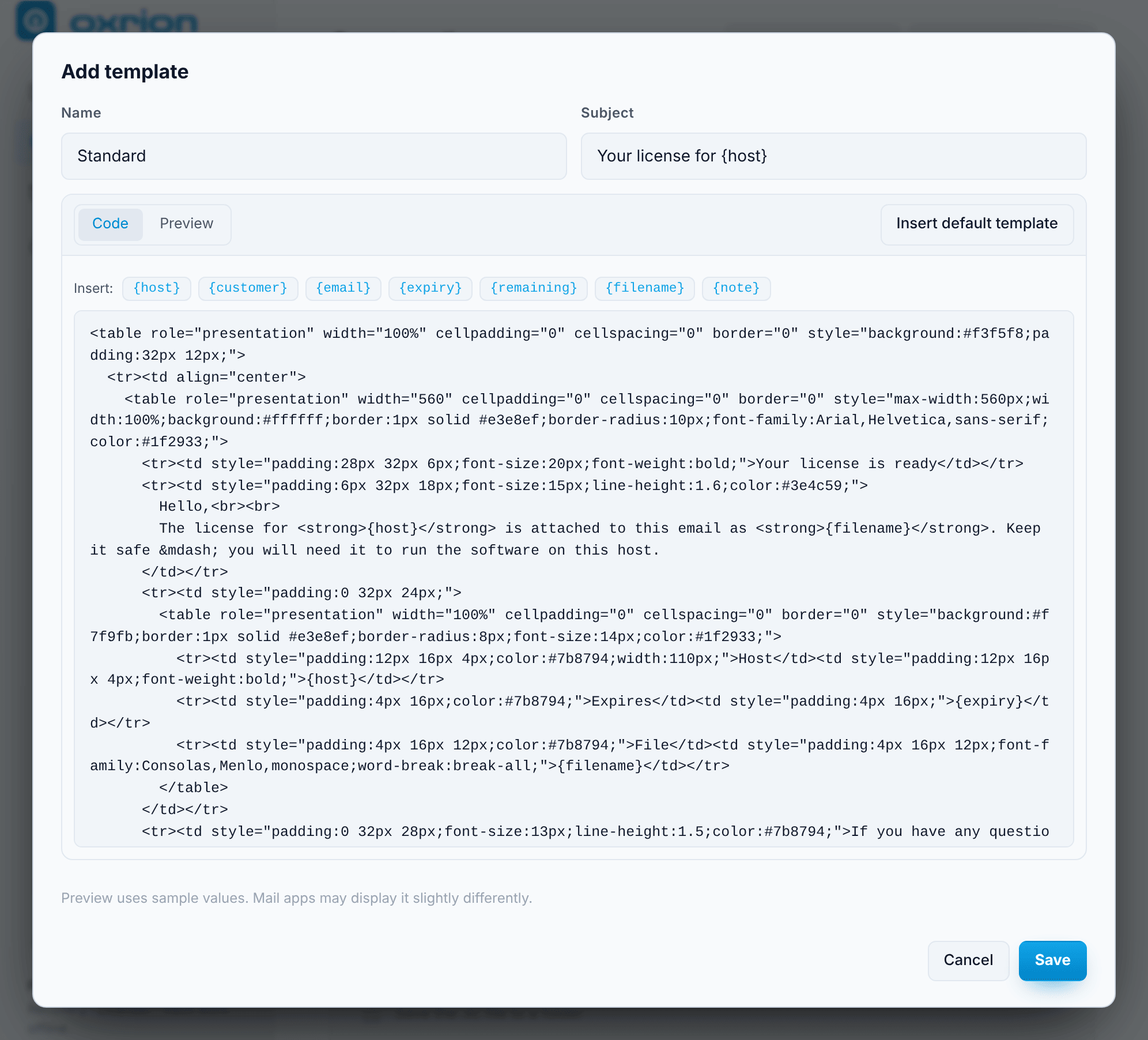
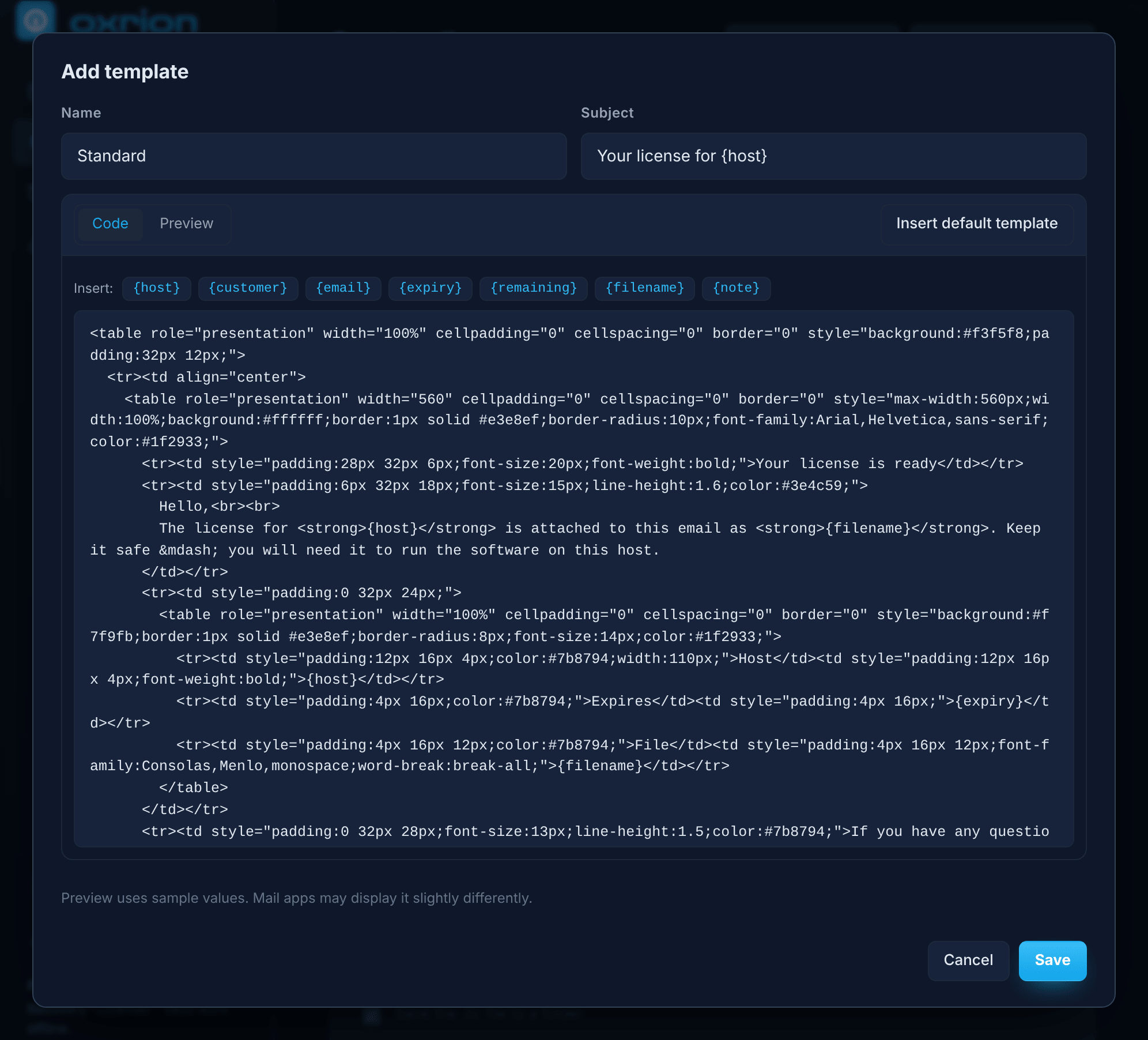
- Name — for your reference.
- Subject and Body — the body can be HTML or plain text. Leave the body empty to use Oxrion’s built-in design, or press Insert default template to start from it and change what you like.
- Code / Preview — switch between editing and a preview with sample values. Desktop / Mobile shows how it fits on a narrow screen.
Use these variables in the subject and body; click one to insert it:
| Variable | Becomes |
|---|---|
{host} | The license’s host |
{customer} | The customer name |
{email} | The customer email |
{expiry} | The license expiry date and time, for example 2027-10-01 14:30, or Never |
{remaining} | Time left, for example 334 days left, 5 hours left, Never expires or Expired |
{filename} | The .lic file name |
{note} | Your note on the record |
The .lic file is always attached.
Without any template, emails use the built-in design with the subject Your license for {host}.
Accounts
Section titled “Accounts”An account is the mailbox that sends the email, using SMTP.
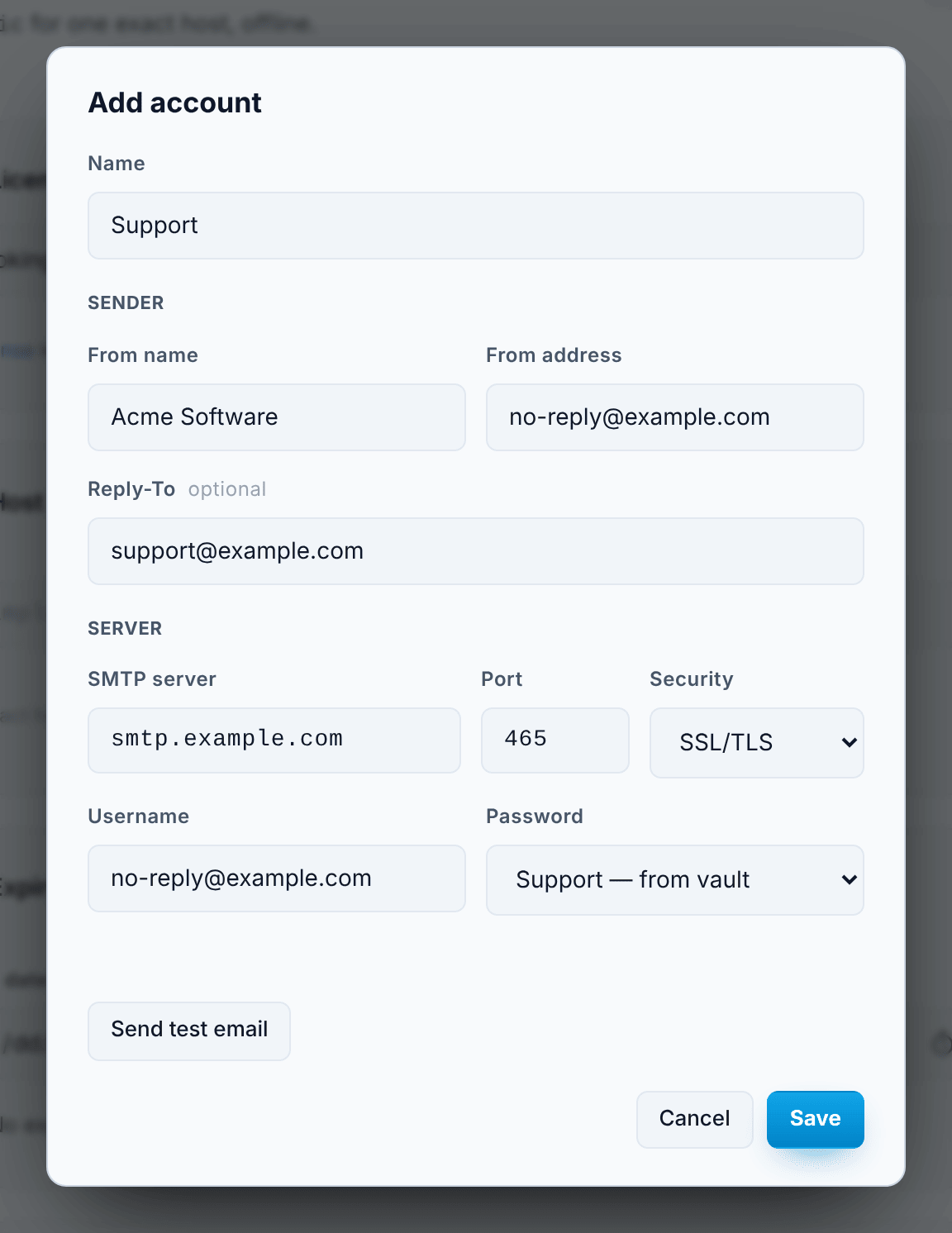
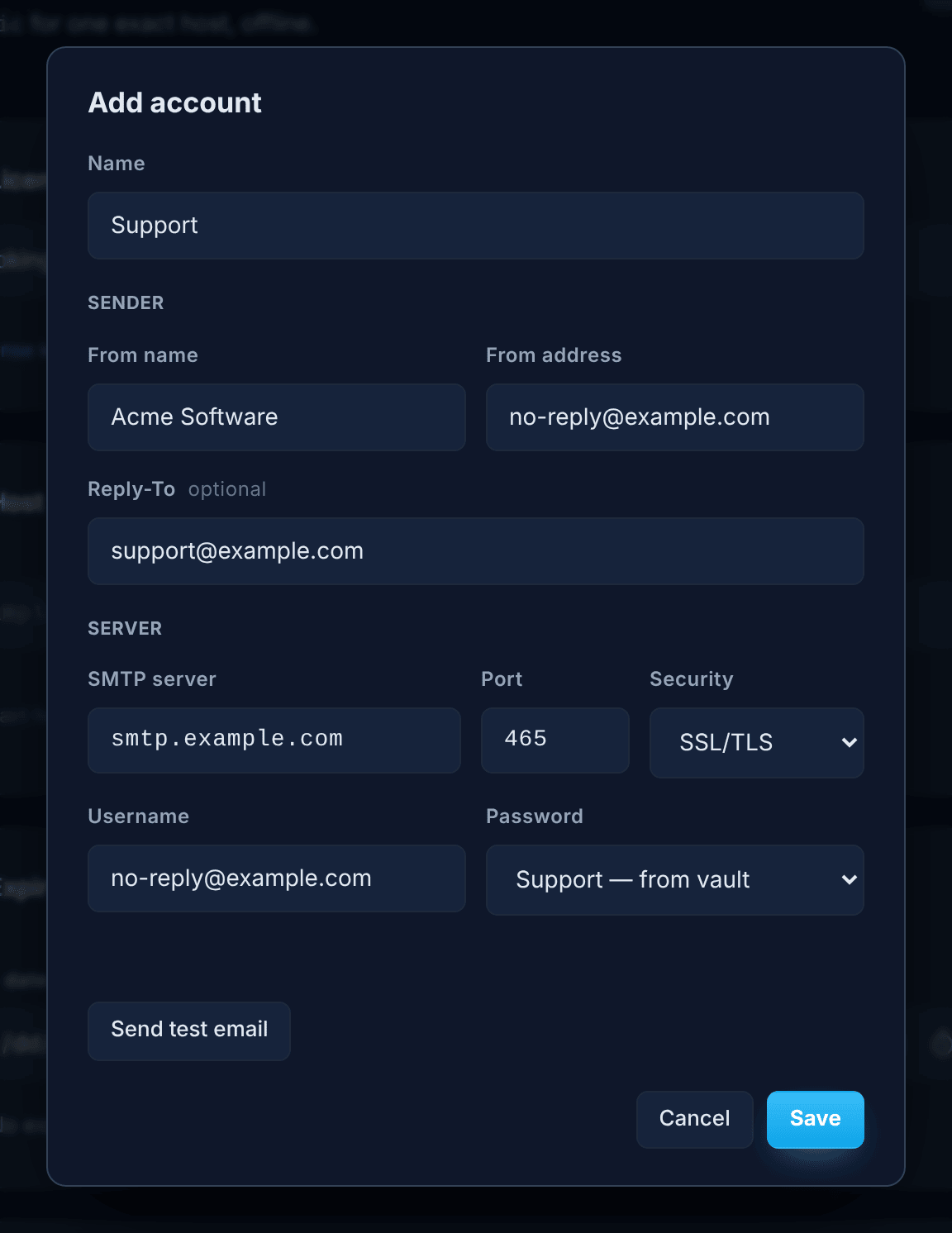
- Name — for your reference.
- Sender — From name, From address, and an optional Reply-To if replies should go to another address (for example your support).
- Server — SMTP server, Port, Security and Username, from your email provider. Choose SSL/TLS (usually port 465) or STARTTLS (usually port 587). Unencrypted connections aren’t supported.
- Password — choose an Email password (SMTP) saved in your Vault, or Ask when sending to type it each time; a typed password is used once and never saved.
Press Send test email to send a short test to the From address.
Webhooks
Section titled “Webhooks”A webhook tells your own system — a customer portal, a CRM, a shop — that a license was created, so it can store it, email it, or make it downloadable.
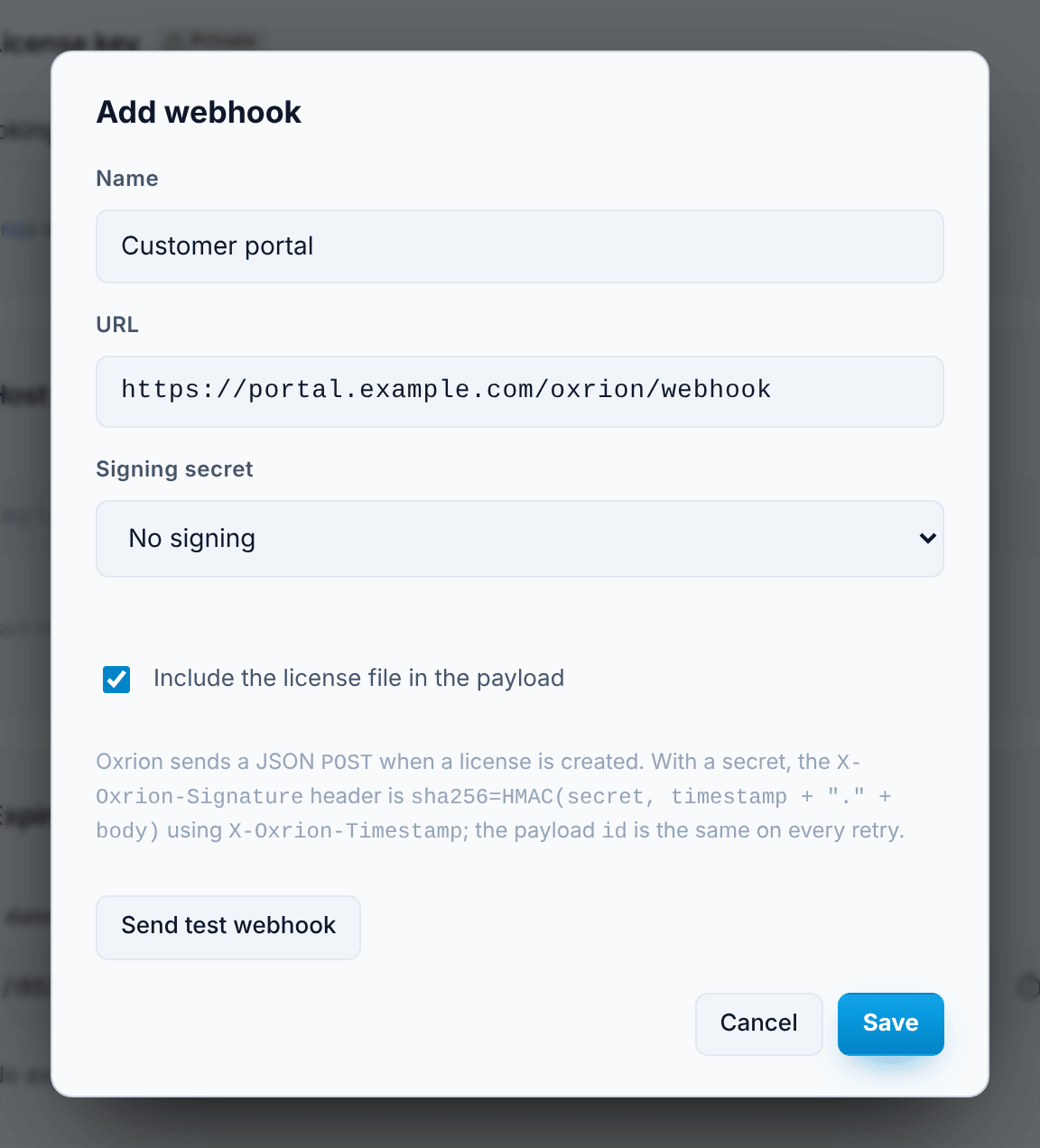
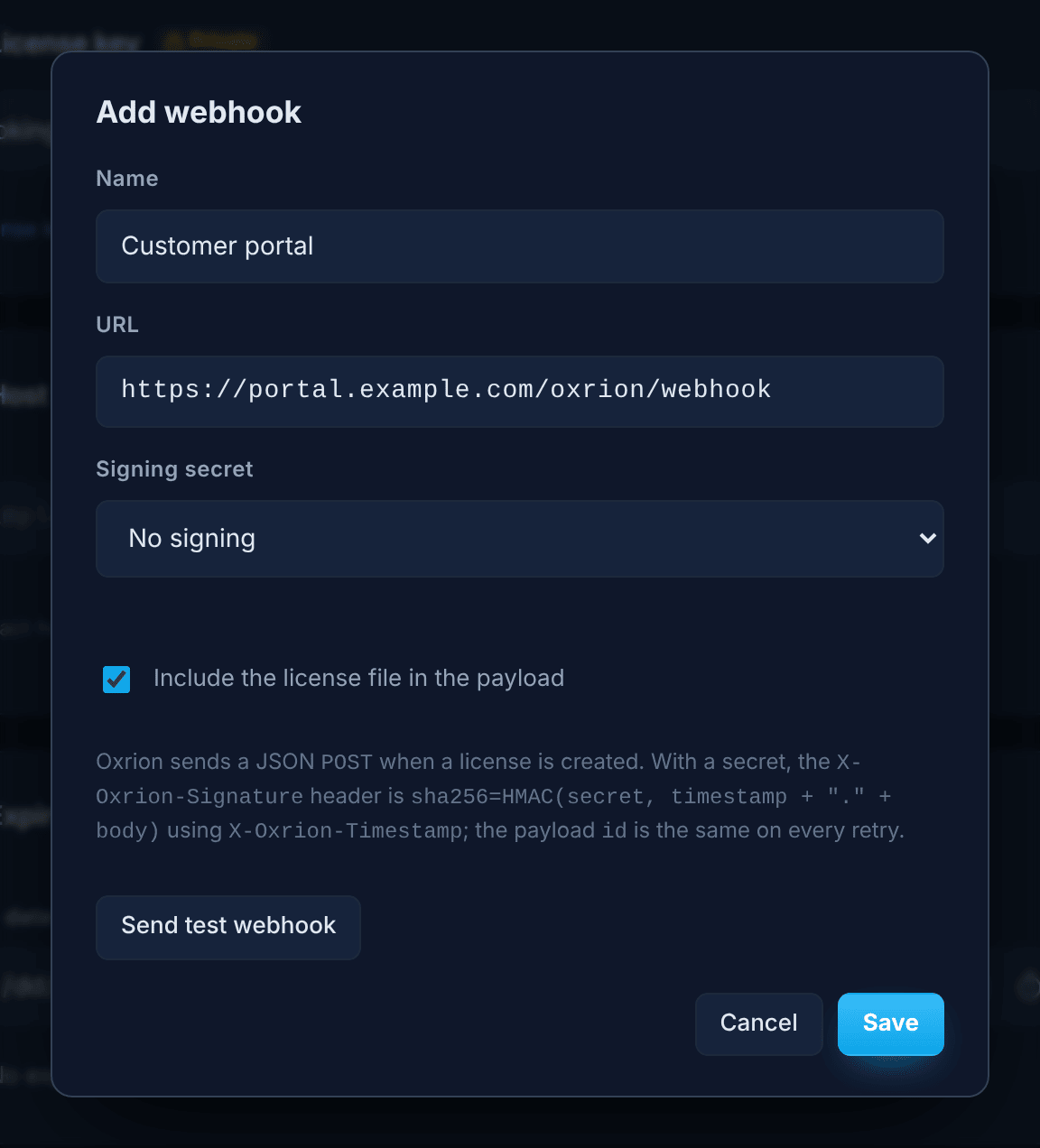
- Name — for your reference.
- URL — where to send it. It must start with
https://; plainhttp://works only forlocalhost, for testing. - Signing secret — a Webhook secret from your Vault, so your system can verify that a request really came from you. Choose No signing to send unsigned requests.
- Include the license file in the payload — on by default; turn it off if your system doesn’t need the license itself.
Press Send test webhook to send a sample request, marked as a test.
See the Webhooks reference for what is sent and how to verify it.
Sending
Section titled “Sending”- When you create a license — tick Email the license to the customer or Send the webhook in the Licenser’s customer details. See Licenser.
- Any time later — use Email license or Send webhook in License History.
Sending needs an internet connection. Your templates, accounts and webhooks are stored on your computer; passwords and secrets stay in your Vault.